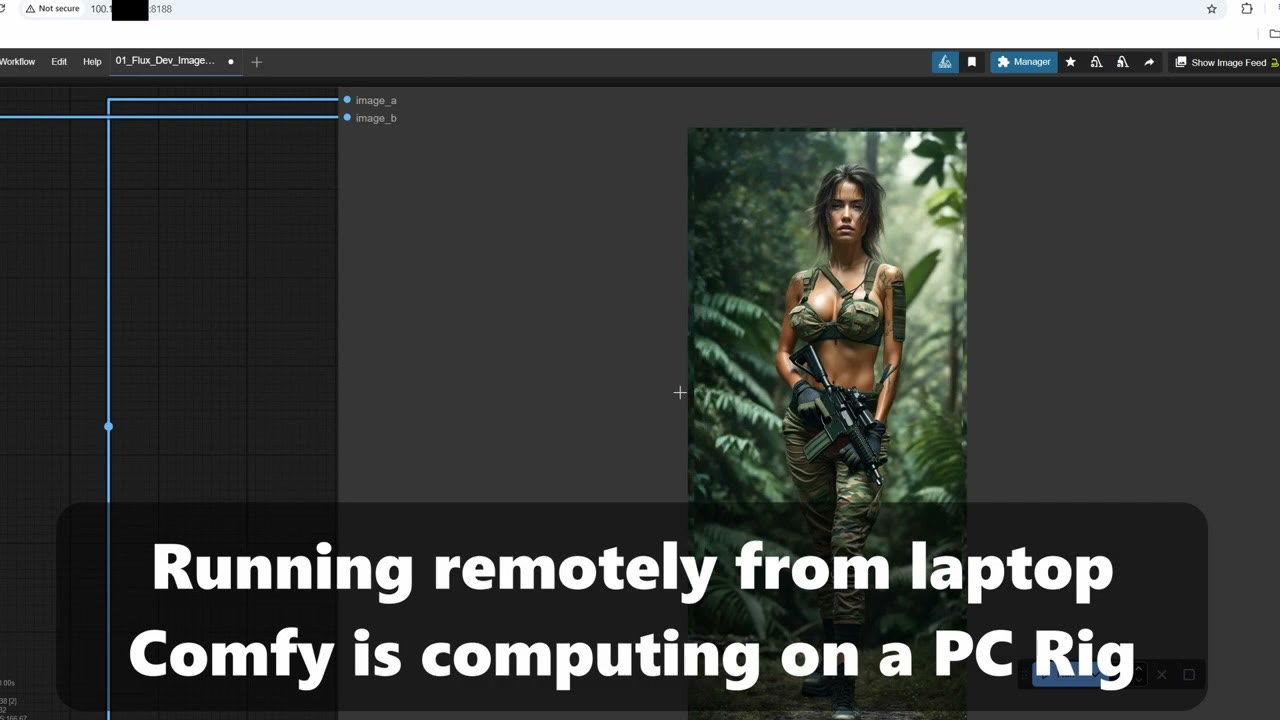
Like many people, I have a laptop and a separate PC built for AI: ComfyUI, Flux, SDXL and other models. But I prefer to work from the laptop, and I travel quite a bit. I’m not a developer, and I wanted a way to use the PC remotely that was simple, fast and free.
I tried most remote tools: Windows Remote Desktop (which needs Windows Pro), TeamViewer, Chrome Remote Desktop, AnyDesk. They all stream the screen, so there’s lag, and they usually need the PC unlocked and logged in. I wanted the PC to run without even a monitor, and I didn’t want a $20–40 monthly subscription.
What works: Tailscale, free, plus MEGA’s free 20 GB for syncing renders. Instead of streaming a screen, you open ComfyUI’s own web page from the laptop, while the PC does the computing.
In short
- Tailscale puts your PC and laptop on a private network, even in different countries.
- One line in ComfyUI’s start file lets it accept connections from other devices.
- Open
http://<PC's Tailscale IP>:8188in the laptop’s browser. - Auto-start ComfyUI on boot and stop the PC from sleeping.
- Save renders into a MEGA folder so they sync to your laptop and phone.
What Tailscale does
Tailscale is a very easy-to-install VPN that connects your devices into a private, encrypted network automatically. Each device gets its own internal IP address, and they talk to each other as if they were on the same Wi-Fi, even when one is at home and the other is abroad. There’s no port forwarding and no server setup. It’s free for personal use and works on Windows, Mac, Linux and even Android.
1. Install Tailscale on both machines
- Go to tailscale.com and sign in with a Google or GitHub account.
- Install it on your PC and on your laptop, and log in on both with the same account.
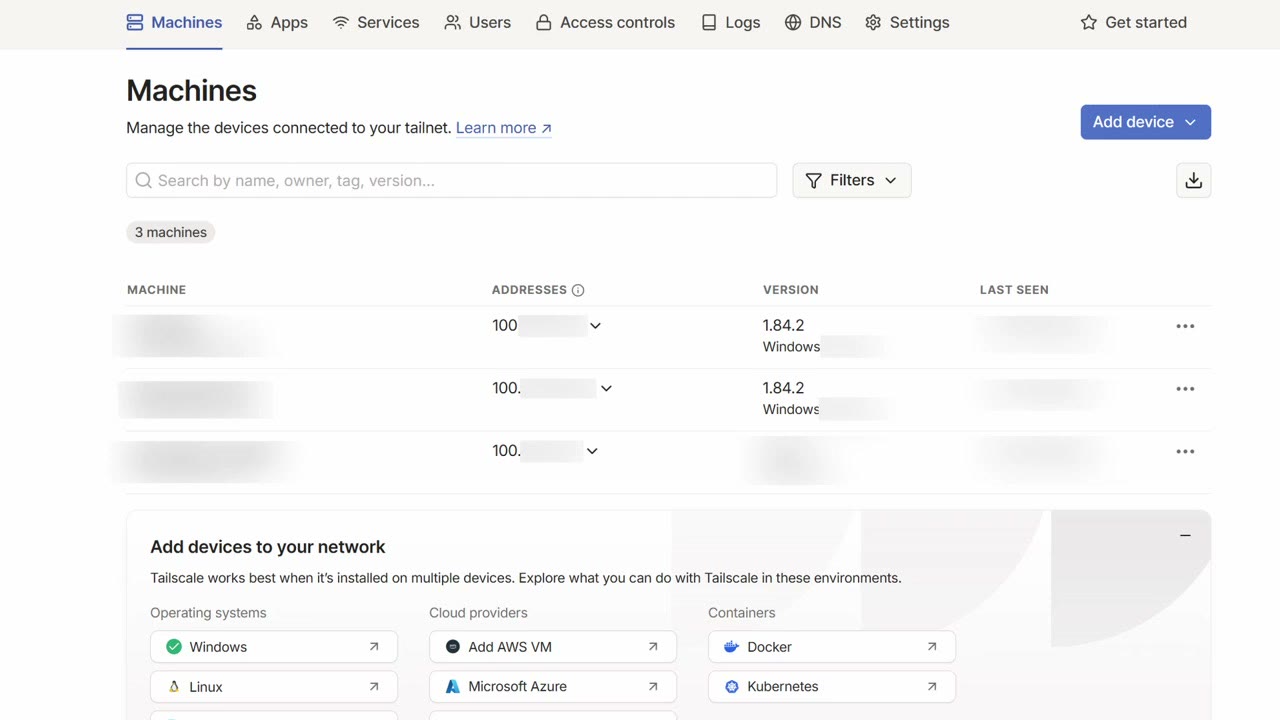
- In the Tailscale admin page, check that both devices are online and each has an IP address (they start with 100.). That means they can see each other.
2. Let ComfyUI accept remote connections
By default ComfyUI only listens on localhost, so only the PC itself can open it. In your ComfyUI portable folder, open run_nvidia_gpu.bat in a text editor and replace the last line with:
.\python_embeded\python.exe -s ComfyUI\main.py --windows-standalone-build --listen 0.0.0.0 --port 8188
pause
Save it, and start ComfyUI with run_nvidia_gpu.bat as usual.
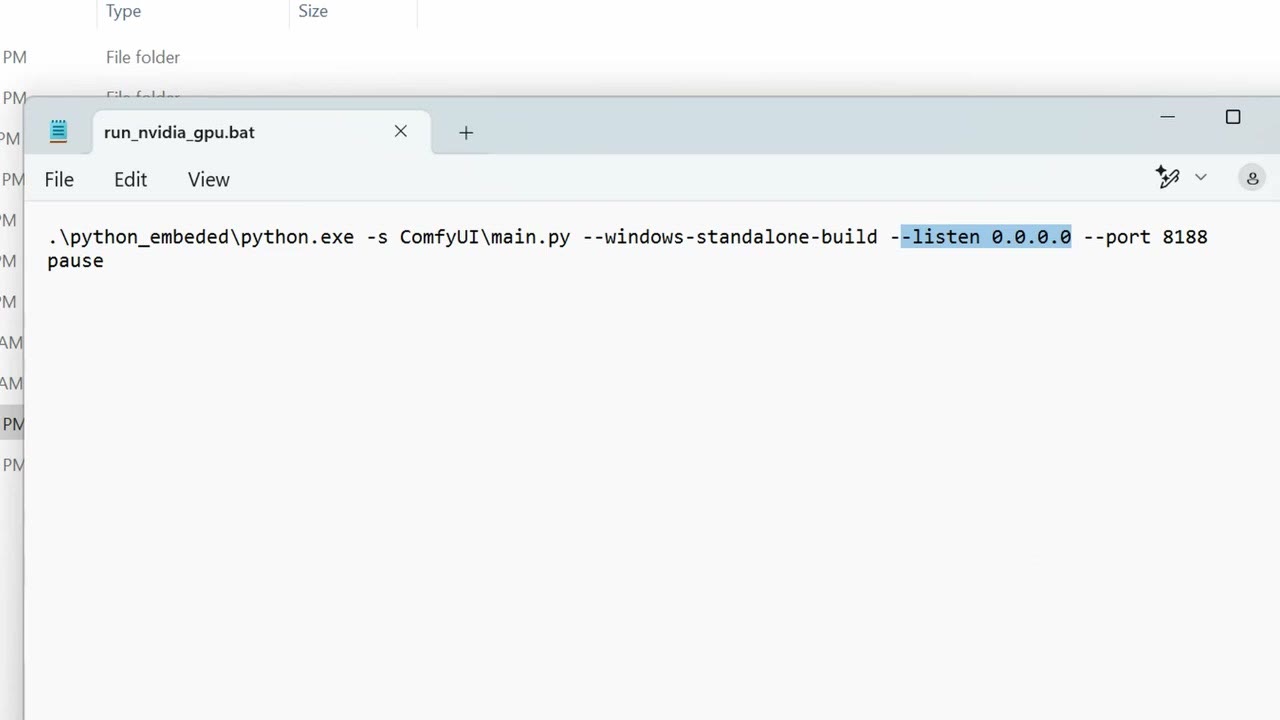
--listen 0.0.0.0 --port 8188.A security note: --listen 0.0.0.0 makes ComfyUI reachable on every network the PC is connected to, not only Tailscale, so anyone on your home Wi-Fi could open it too. That’s usually fine at home. Don’t do this on a PC connected to a shared or public network unless a firewall blocks port 8188 from everything except Tailscale.
3. Open ComfyUI from the laptop
On the laptop, open a browser and go to your PC’s Tailscale IP followed by :8188, for example http://100.x.x.x:8188. The browser may say “Not secure”, because the address is plain HTTP. The connection itself runs through Tailscale’s encrypted tunnel.
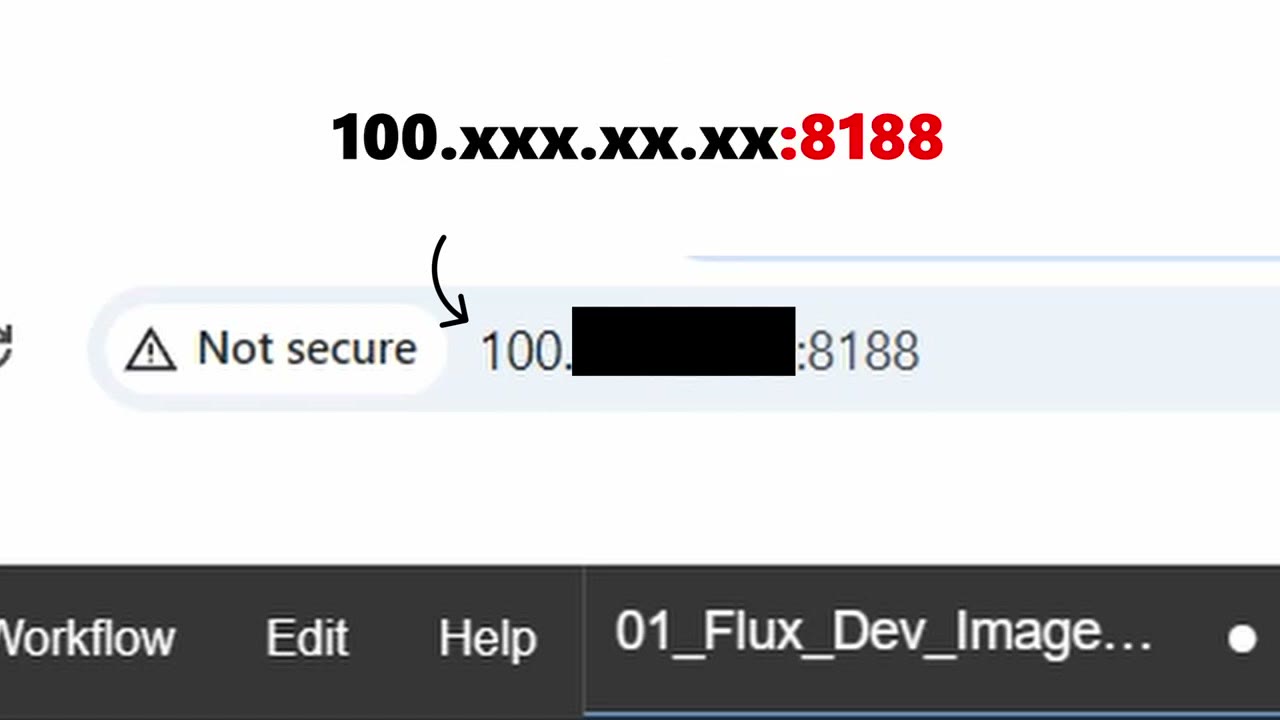
You’ll see the full ComfyUI interface, using the models installed on the PC. One limitation: you don’t get the PC’s saved workflows. Copy your workflow files to the laptop, or build them there.
4. Keep the PC ready
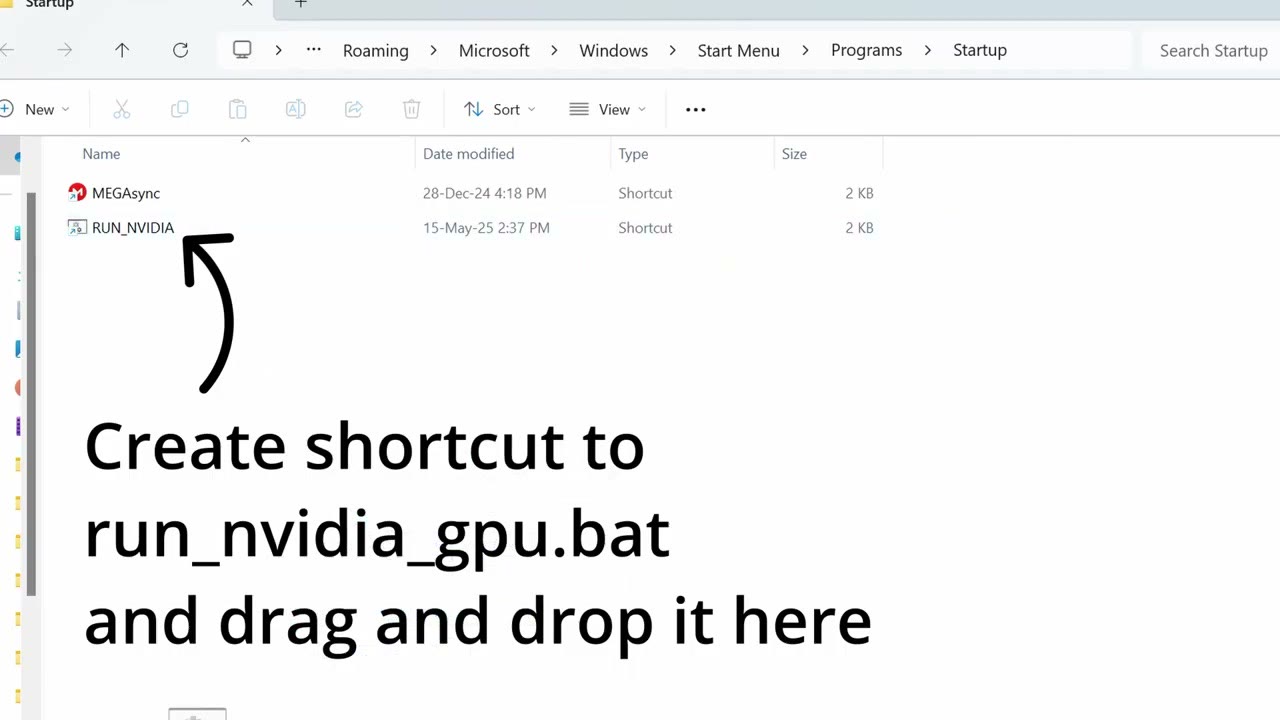
- Auto-start ComfyUI: create a shortcut to
run_nvidia_gpu.batand drag it into the Windows Startup folder (typeshell:startupin the Run dialog, Win+R, to open it). - Stop the PC from sleeping in Windows’ power settings.
Now it can run for as long as you need. In my case, that’s overnight.
5. Get your renders back with MEGA
There’s one catch: images generated from the laptop are saved on the PC, in its local output folder. To get them back, I save them into a synced cloud folder.
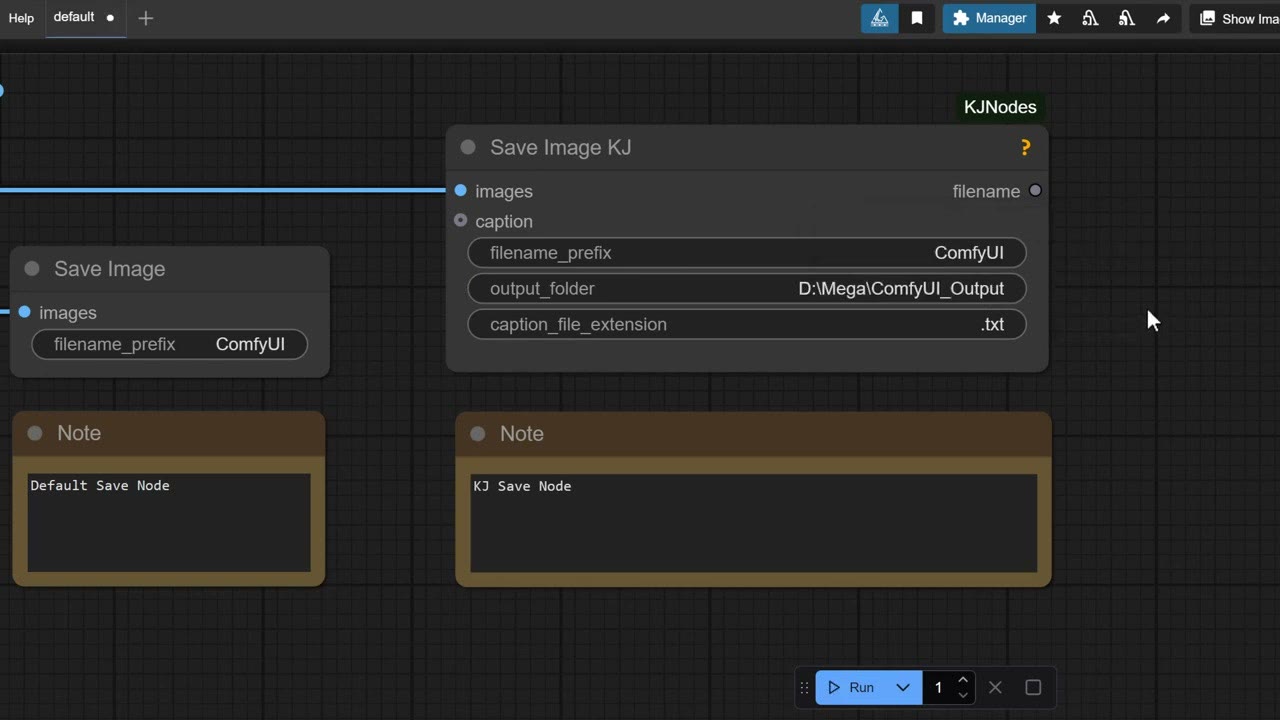
MEGA works like Dropbox, Box or IDrive, but it gives the most free storage: 20 GB. That’s plenty for renders, short videos, or moving a model between computers. On the PC, create a folder inside your MEGA sync folder (for example ComfyUI_Output) and point your save node at it. I use a save node that lets me choose the output directory.
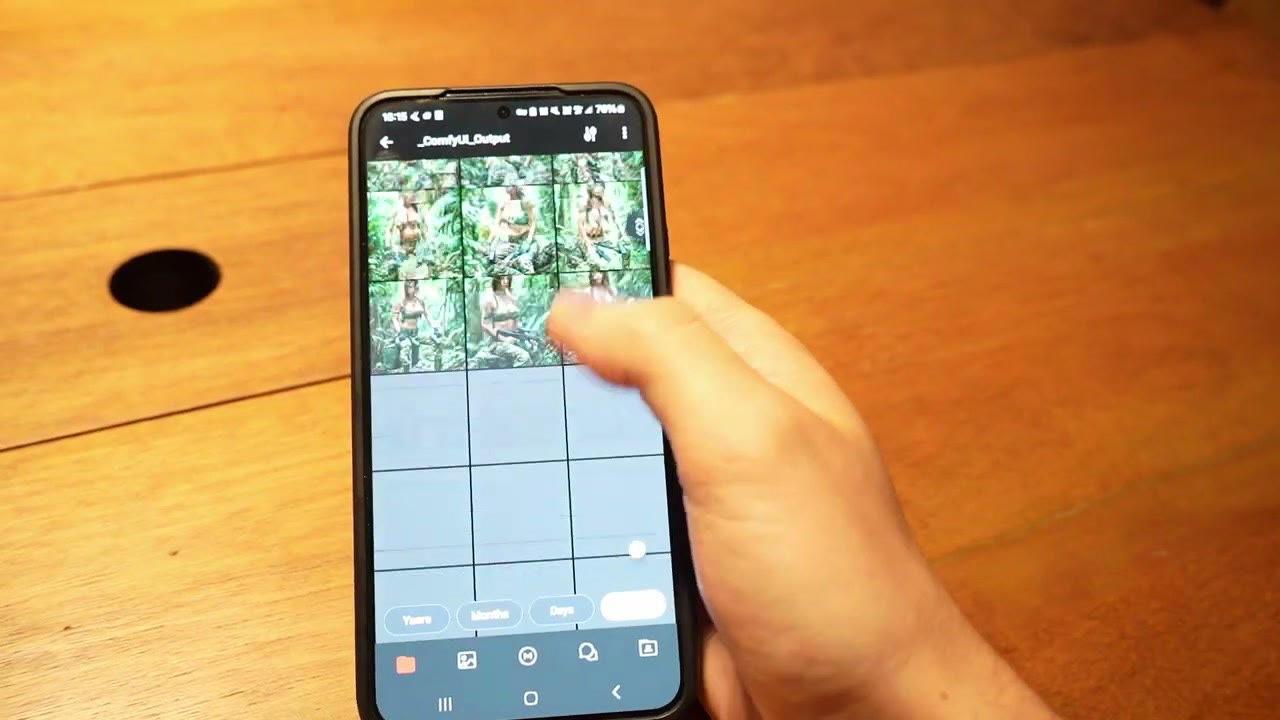
Everything you render then syncs to your laptop. I also have MEGA on my phone, so I can check what’s rendering while I’m out having a coffee. You can also share the folder link with a client or friend so they can browse the results.
It works the other way too: drop input files into a MEGA folder on the laptop, and the remote ComfyUI can pick them up from the synced folder on the PC.
A note from experience: I bought a few terabytes of MEGA storage and somewhat regret it, as it’s not as convenient for big file storage. For large data I’d use IDrive. I’d still use MEGA’s free plan to keep devices in sync.
Optional: full file access with Mountain Duck
For complete control over the PC’s files, I use Mountain Duck, a one-time purchase of $47, no subscription. It mounts the PC’s drive on the laptop. There’s a bit of lag, but I can move and copy files, for example bringing a LoRA I trained on another server onto the PC, or moving a model between folders.
Or skip the home PC altogether
This setup is great if you already own a strong PC. If you don’t, or you need more than one GPU, renting is now the simpler route. I eventually moved my own work to cloud GPUs; see my introduction to RunPod.
If you try RunPod, my referral link gives new accounts that sign up with Google $5–$500 in credit after their first $10, and I get a small commission.
Watch the video version (6:30)
Everything above is in the video too, if you'd rather follow along on screen.
FAQ
Why not just use Remote Desktop or TeamViewer?
They stream the whole screen, which lags, they usually need the PC to be unlocked and logged in, and Windows Remote Desktop needs Windows Pro. Here only the ComfyUI page travels over the network.
Is Tailscale free?
Yes, for personal use, on Windows, Mac, Linux and Android.
Can I use my PC’s workflows from the laptop?
Not directly with this setup. The laptop sees the PC’s models, but you need to copy your workflow files to the laptop, or build them there.
Anton Tenitsky is a 3D artist with 15+ years in computer graphics, working with Nickelodeon, Gameloft, Marvel Rivals and many other clients. More about me