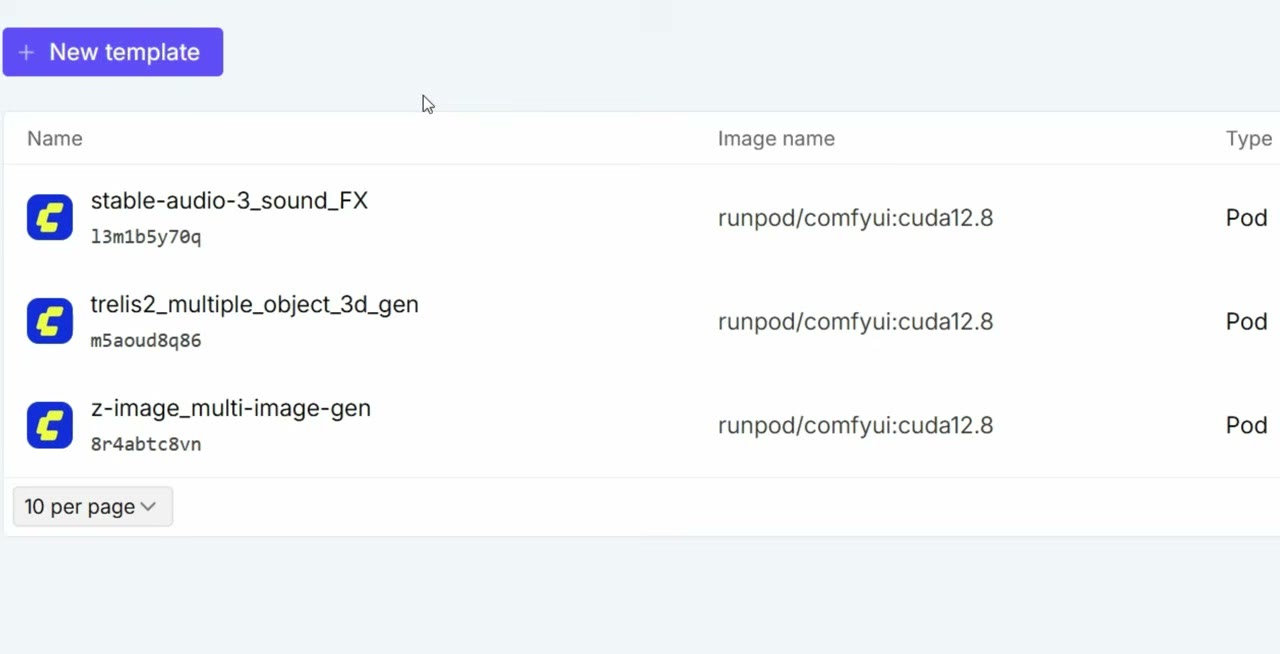
Status: Tested on RunPod. I ran both workflows with this template on RunPod for the video.
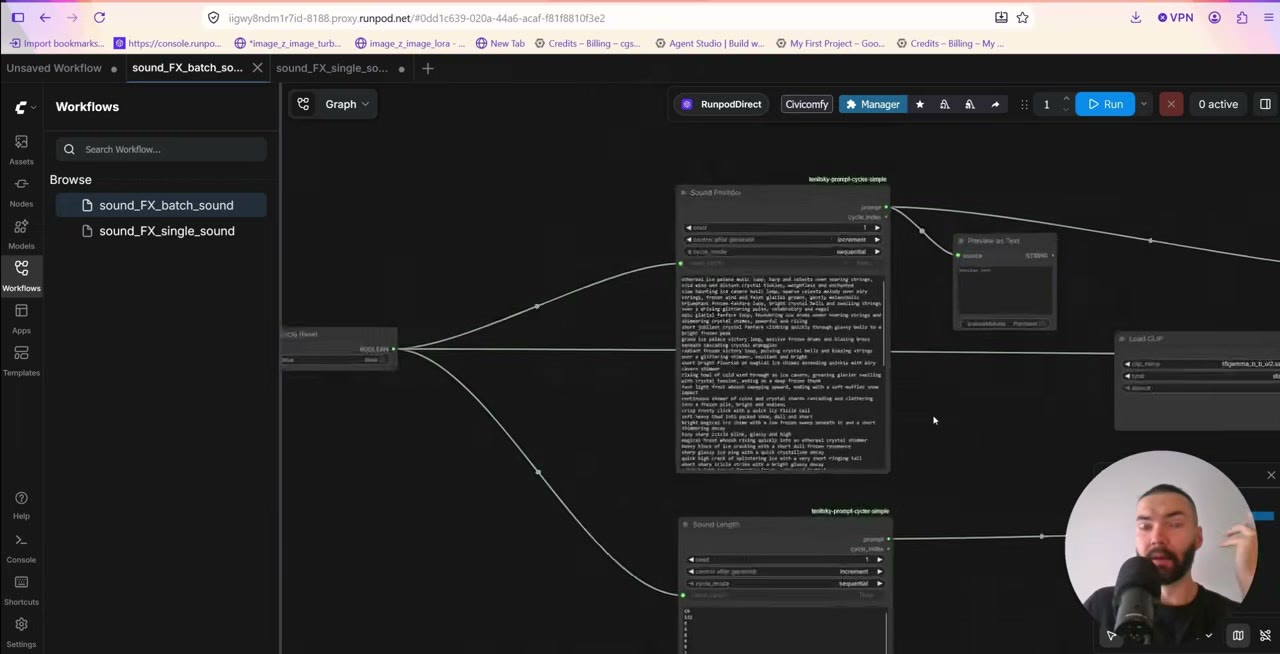
Making one sound effect with AI is easy. Making 50 or 500, each with its own prompt, length and file name, is what this setup is for. It runs Stable Audio 3 Medium in ComfyUI with two ready workflows: one for single sounds and one that works through a list on its own.
You can run it locally: the setup guide on GitHub lists every model and node, and a chatbot can turn it into install commands for your machine. Or use the one-click RunPod template, which has everything installed in about two minutes.
In short
- Model: Stable Audio 3 Medium, built into ComfyUI. It’s light: almost any GPU works.
- Single sound: type a prompt, set the length in seconds, run.
- Batch: three lists (prompts, lengths, file names), one line per sound, run until done.
- Settings I use: 50 steps, guidance 7.
- Honest verdict: not the best audio model out there, but very cheap to run at volume.
Set up
On RunPod: open the template, pick a GPU and deploy. The model is light, so the GPU barely matters; I used a card with about 20 GB of VRAM. A 30–40 GB disk is plenty, since the models are about 11 GB. Setup takes about two minutes. ComfyUI may say “ready” a little early, so give it another minute or two. If RunPod is new to you, start with my introduction to RunPod.
Locally: you need ComfyUI 0.30 or newer (Stable Audio 3 support is built in), the two model files from the Comfy-Org repository, and my Prompt Cycler node for the batch workflow. You can install the node through the ComfyUI Manager’s “install via Git URL”.
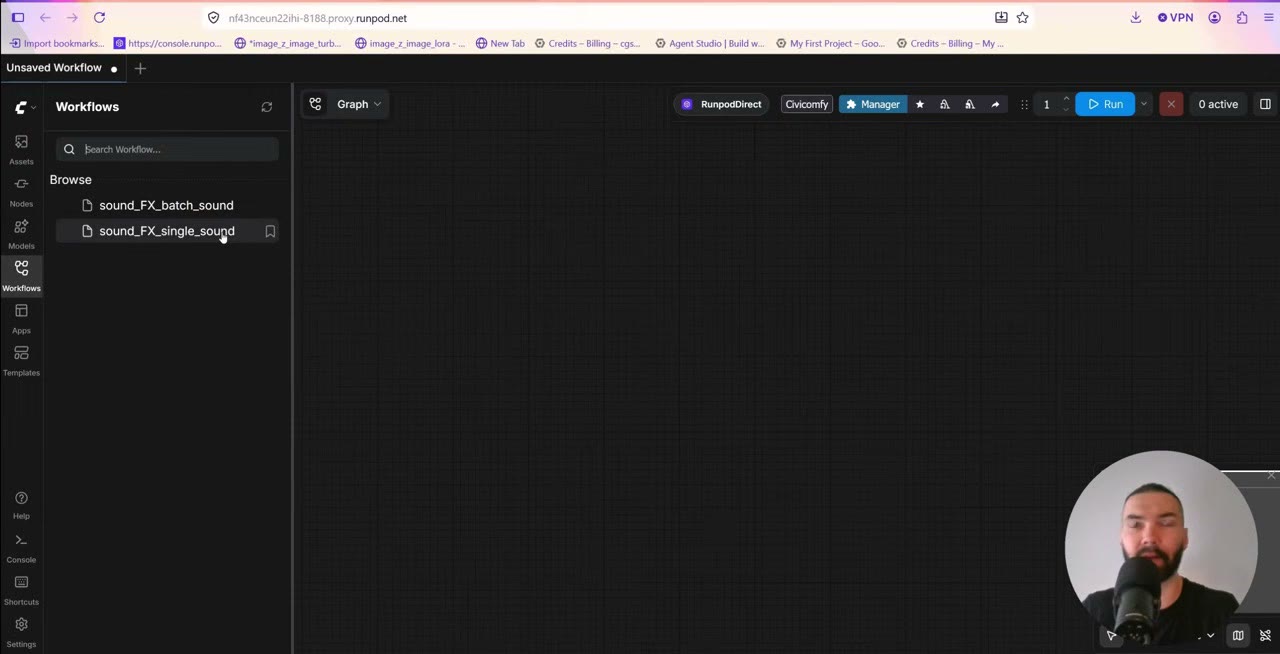
Both workflows appear in ComfyUI’s Workflows sidebar: sound_FX_single_sound and sound_FX_batch_sound.
The single-sound workflow
It’s a small graph:
- Load Checkpoint with Stable Audio 3 Medium.
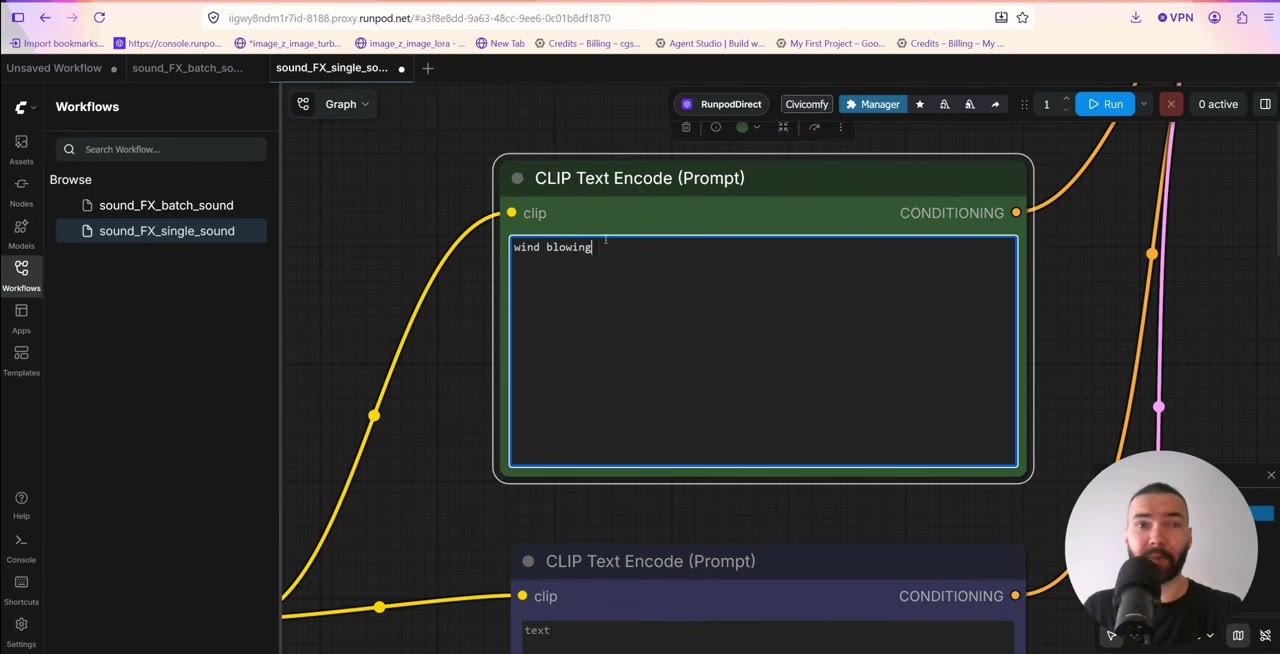
- Text encoder → positive and negative prompts. Unlike many models, Stable Audio supports negative prompts. Putting “hiss” or “ambient noise” there sometimes cleans up the result; sometimes it makes no difference.
- EmptyLatentAudio, where you set the length in seconds.
- KSampler at 50 steps and guidance (CFG) 7.
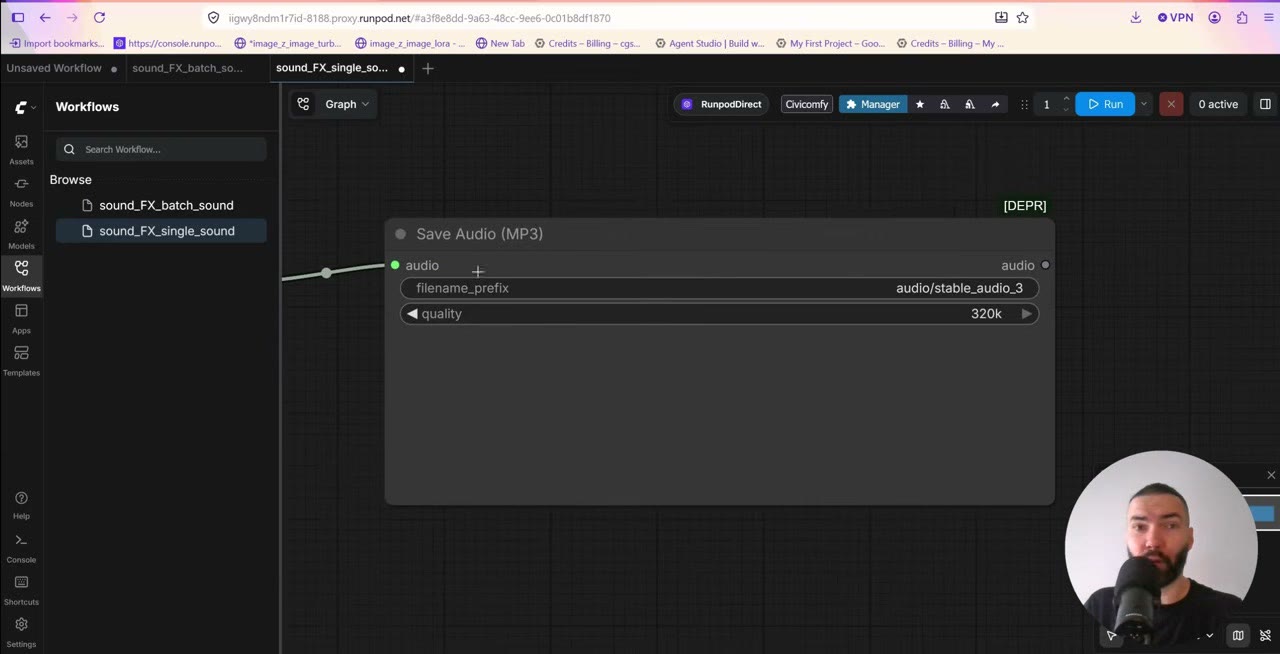
- Save Audio (MP3).
Two things to know about the settings:
- The length is a maximum, not a promise. Ask for 6 seconds and you may get 4 seconds of sound and then silence.
- Steps. 50 steps at guidance 7 is what I use for quality. I also tried 8 steps at guidance 1 and still got usable sounds, since the model is fast either way. If you want that speed on purpose, the template can download the distilled Stable Audio 3 Medium, which is made for 8 steps at CFG 1 (set
DOWNLOAD_SA3_MEDIUM=1, then pick it in the checkpoint loader).
Click Run. A sound takes a few seconds, and you can play it right on the node. Files are saved to ComfyUI/output/audio/ as MP3s. On a pod, download them through JupyterLab.
output/audio folder.The batch workflow
One sound at a time isn’t the point. The batch workflow is the same graph with three lists, all driven by the Prompt Cycler node:
- Prompts: one sound description per line.
- Lengths: the length in seconds for each line (in my list, anything from 8 to 132 seconds).
- File names: one name per sound.
Line 1 of each list belongs to sound 1, line 2 to sound 2, and so on. Keep the three lists the same length and in the same order.
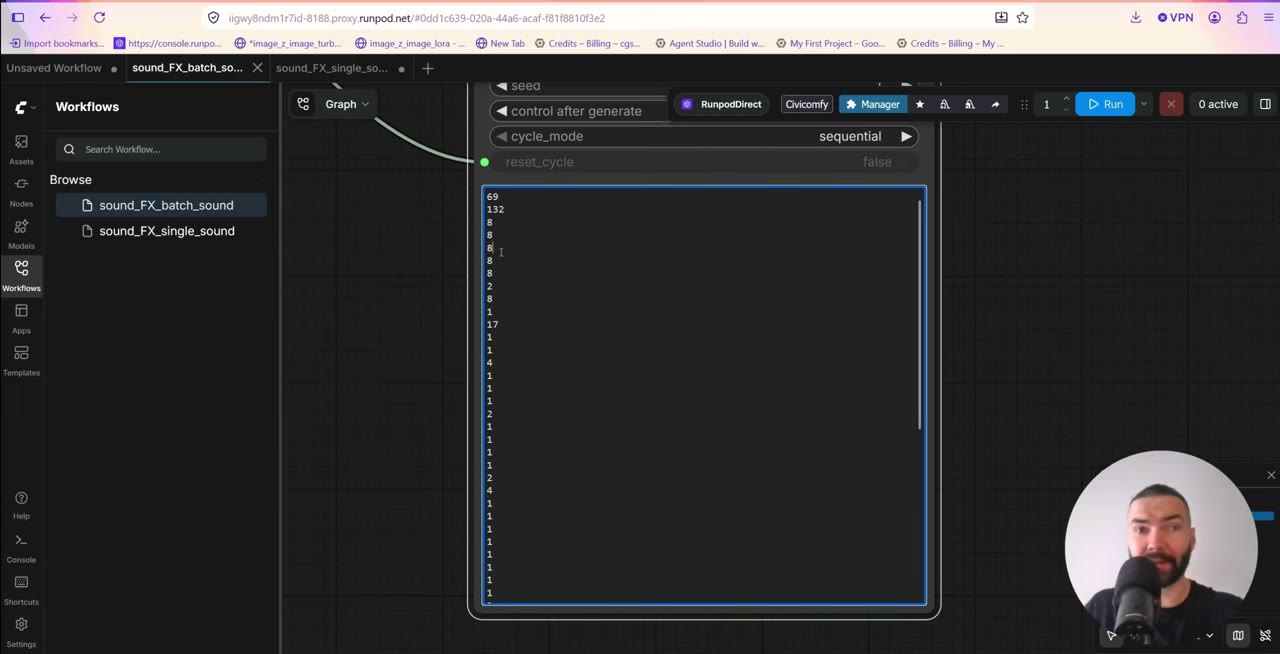
The easiest way to fill the lists is to ask a chatbot (ChatGPT, Gemini or Claude) for the prompts, lengths and file names as three clean lists, with no numbering or bullet points.
Then queue with Run (Instant), or set the batch count to the number of lines. A preview node shows which prompt is running. Each sound takes a few seconds.
Resetting the batch
The batch position is kept in memory. To start again from the first line, or after restarting ComfyUI:
- Set Cycle Reset to
trueand run once. - Set it back to
false. - Queue the batch again.
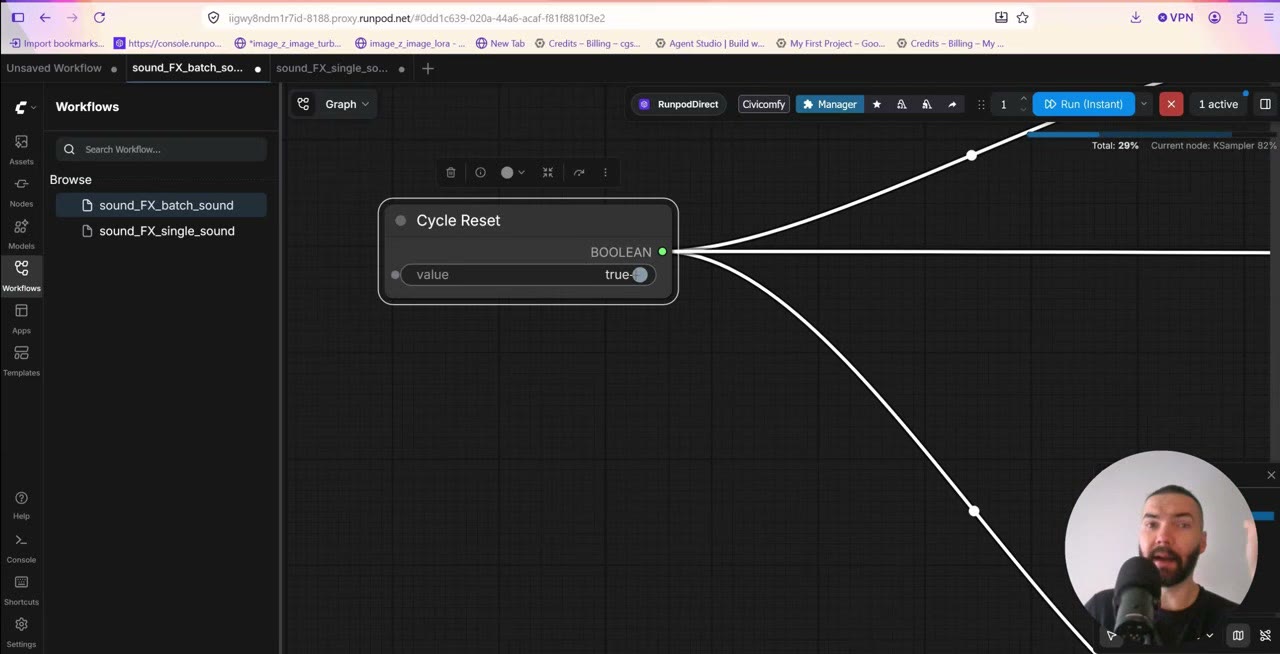
It’s a little clunky, but it’s the most reliable approach I found. The lists also wrap around after the last line, so queue only as many runs as you have lines, or the batch starts over.
Every file gets a number appended, like _00001. I rename them afterwards.
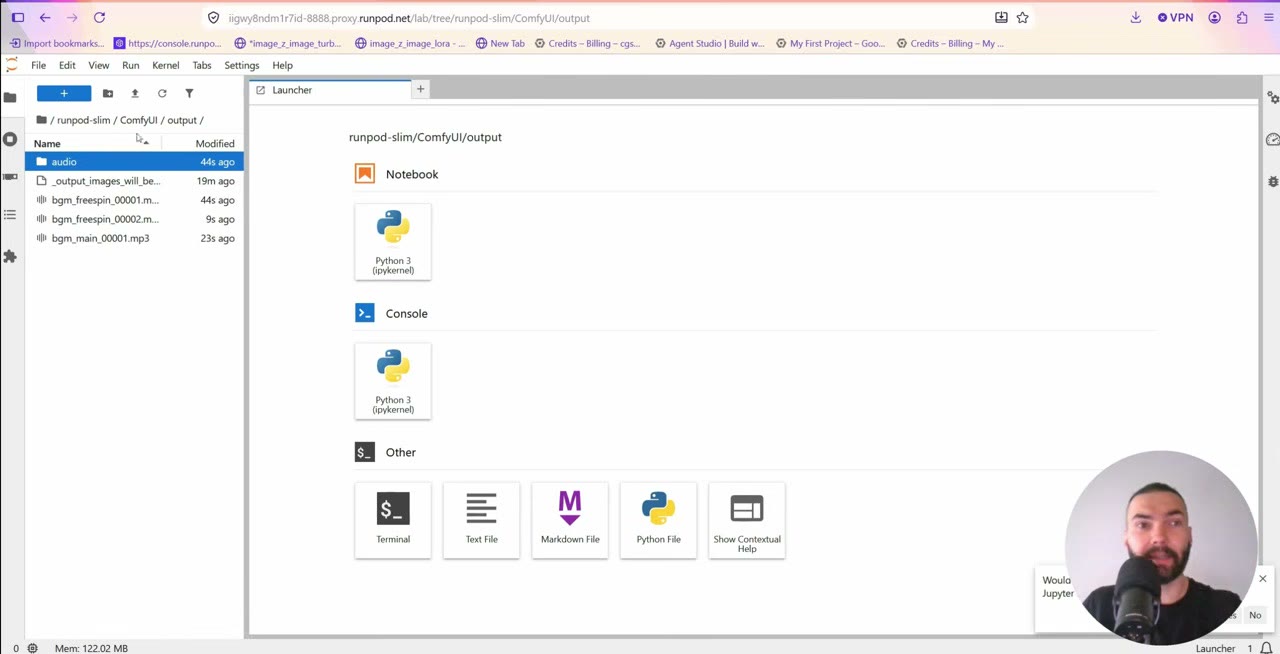
ComfyUI/output/audio, ready to download.How good is it?
Results vary. Some sounds are great, some aren’t, and prompting makes a big difference. Stable Audio 3 isn’t the best audio model available: I compared it with ElevenLabs, and sometimes they were on par, sometimes ElevenLabs was better.
What this setup gives you is volume and control: hundreds of sounds with your own names and lengths, on your own GPU or a cheap rented one, and the freedom to rerun anything that didn’t land.
When you’re done
Stop the pod so it stops billing, then terminate it: even a stopped pod’s disk costs a few cents.
The template link is a RunPod referral link, as is this one: new accounts that sign up with Google get $5–$500 in credit after their first $10, and I get a small commission.
Watch the video version (8:52)
Everything above is in the video too, if you'd rather follow along on screen.
FAQ
What GPU do I need for Stable Audio 3?
Very little. The model is about 9 GB, and it ran comfortably on the card I used, with about 20 GB of VRAM. A 16 GB card should be enough.
How long can a Stable Audio 3 sound effect be?
You set the length in seconds. My batch list had lengths from 8 to 132 seconds. The model doesn’t always fill the time: a 6-second request can give 4 seconds of sound and then silence.
Is Stable Audio 3 as good as ElevenLabs?
In my tests, sometimes they were on par and sometimes ElevenLabs was better. The advantage here is running hundreds of sounds on your own GPU or a cheap rented one.
Why did my batch start again from the first sound?
The batch position is kept in memory. After a ComfyUI restart, or when you queue more runs than you have lines, it starts over. Queue exactly as many runs as you have lines.

Anton Tenitsky is a 3D artist with 15+ years in computer graphics, working with Nickelodeon, Gameloft, Marvel Rivals and many other clients. More about me