AI hands are still a problem with open-source models. This workflow fixes them one image at a time: you paint a rough mask over the bad hand, and Flux redraws just that area at a higher resolution. Flux is the best open-source model I’ve used for this, even for really complicated cases like two hands wrapped around a lightsaber.
The image I fix here was rendered with SDXL, then run through this Flux setup. To fix a whole folder automatically, see the batch version: auto-fix AI faces and hands.
In short
- Mask the broken hand by hand in ComfyUI’s mask editor. A rough mask is fine.
- Crop and enlarge: the masked area is turned into a segment and re-rendered at 512 px.
- Settings: denoise 0.6–0.75, prompt “two hands, five fingers”.
- Hard cases: paint out awkward fingers first, in Photoshop or the free Photopea.
- Rerun a few times. Each run takes about 16 seconds once Flux is loaded.
Why hands break
The problem is pixels. If you render a close-up, the hand covers a lot of pixels and comes out nicely. Zoom out to a full figure, and the hand shrinks to a small, blurry patch where the model starts improvising fingers.
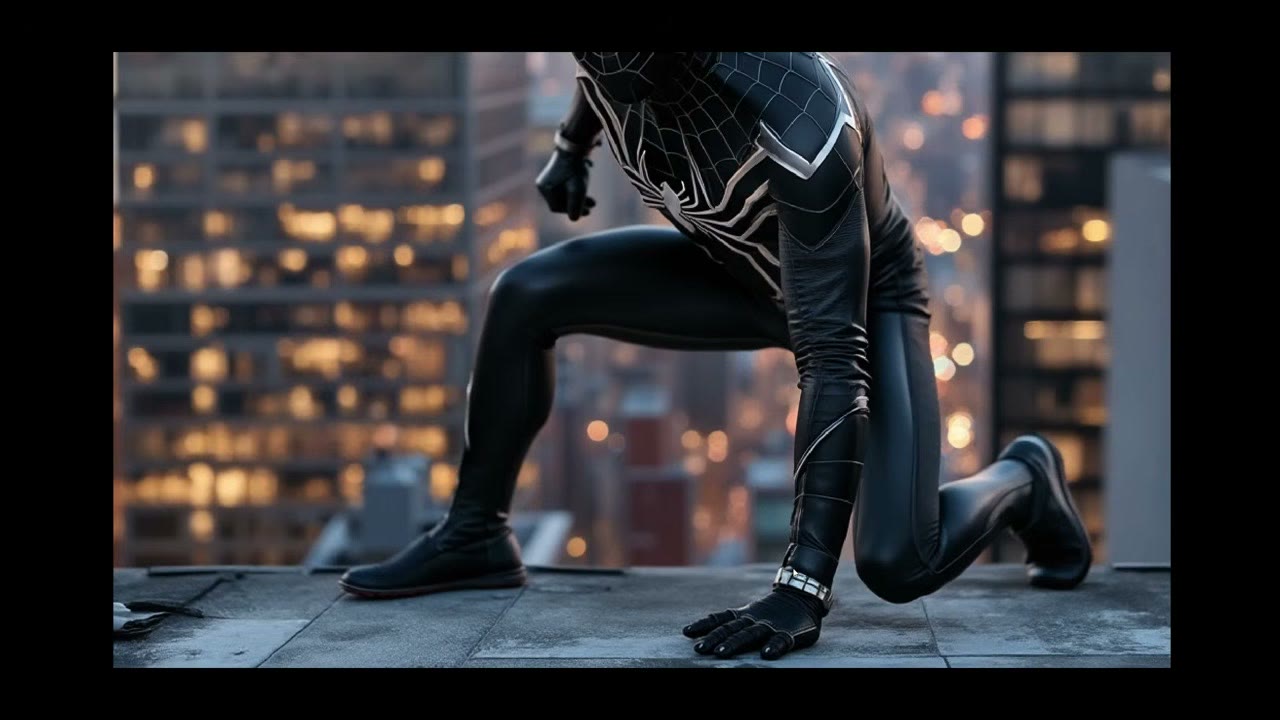
So the fix is to crop the hand, enlarge it and render it again with Flux, then put it back.
1. Load the image and paint a mask
Load the image, right-click it and open the mask editor. Paint roughly over the hand; it really doesn’t have to be neat. Save, and the image now carries a mask.
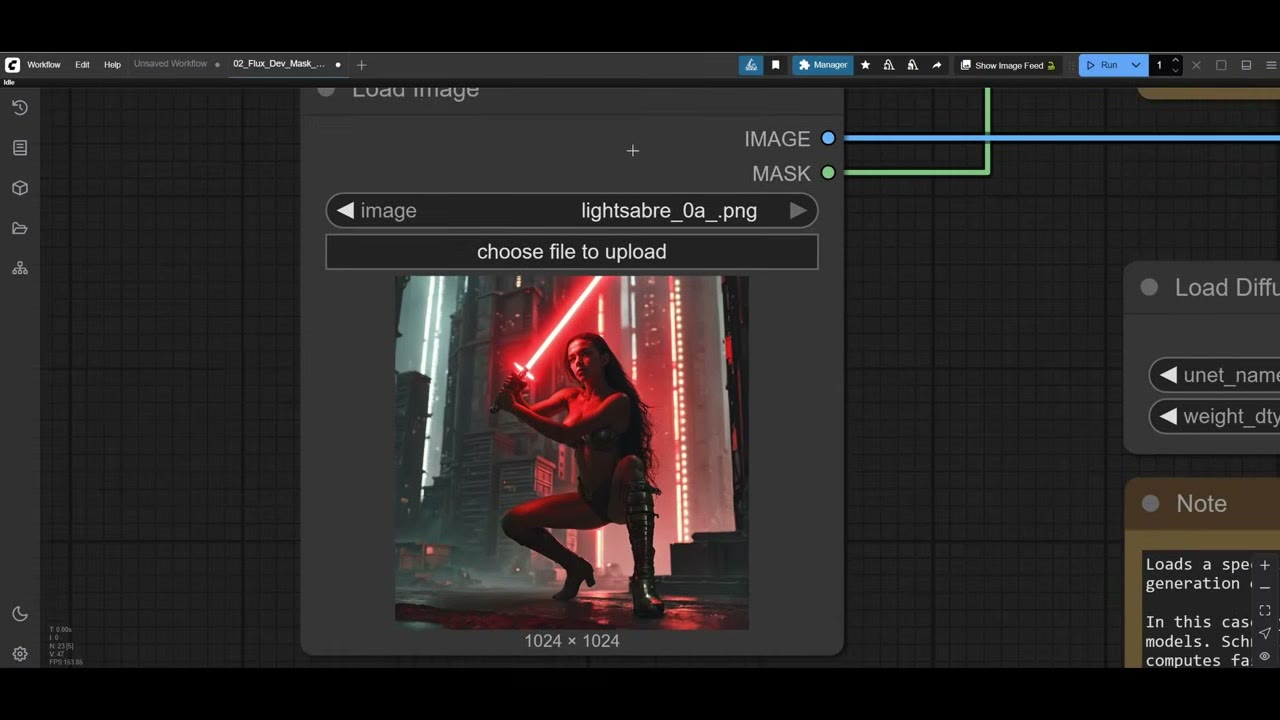
This is the manual version: you choose the area. It works for anything you want to redraw, not only hands. A foot, for example.
2. Turn the mask into a segment
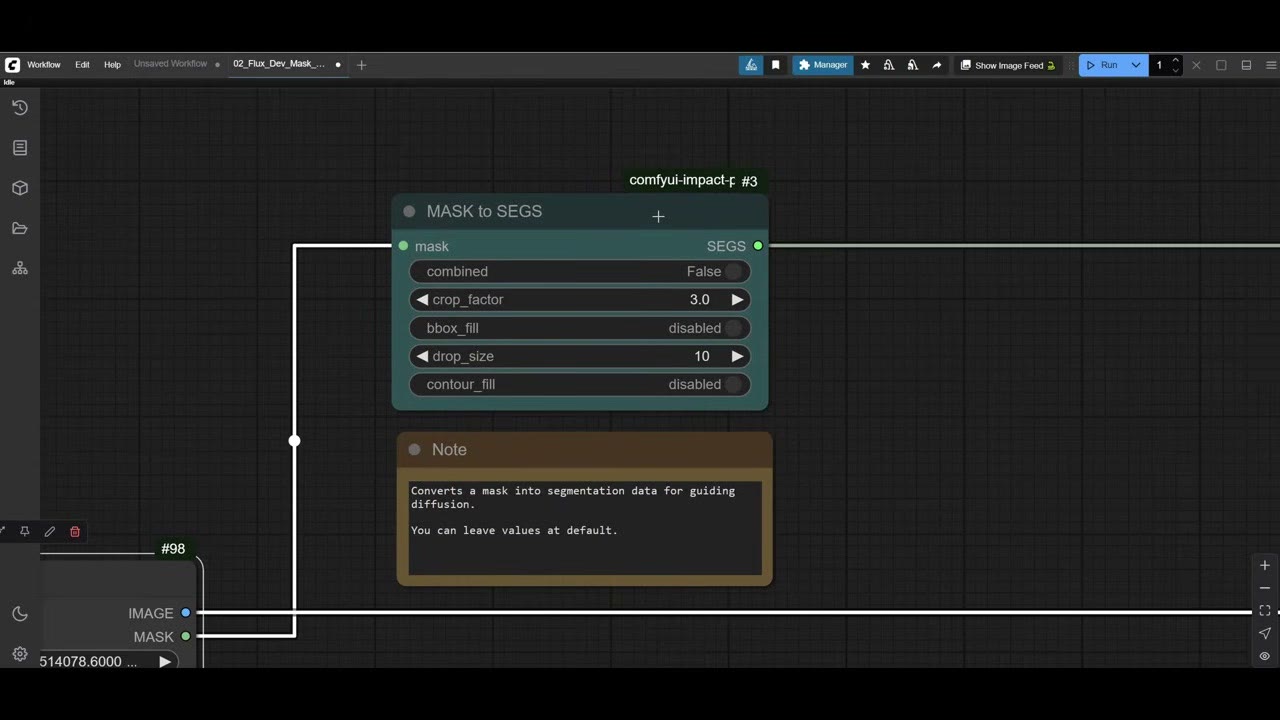
Masks to SEGS (from the Impact Pack) turns the mask into a segment. That’s the important step, because the Detailer (SEGS) node then scales that small area up to 512 pixels before rendering it. A tiny hand gets the resolution of a close-up.
3. Connect Flux to the detailer
The detailer gets the same inputs as a normal Flux generation:
- Load Diffusion Model: Flux dev, into the detailer’s model input.
- VAE: the Flux VAE.
- DualCLIPLoader: Flux’s two text encoders. Flux needs both.
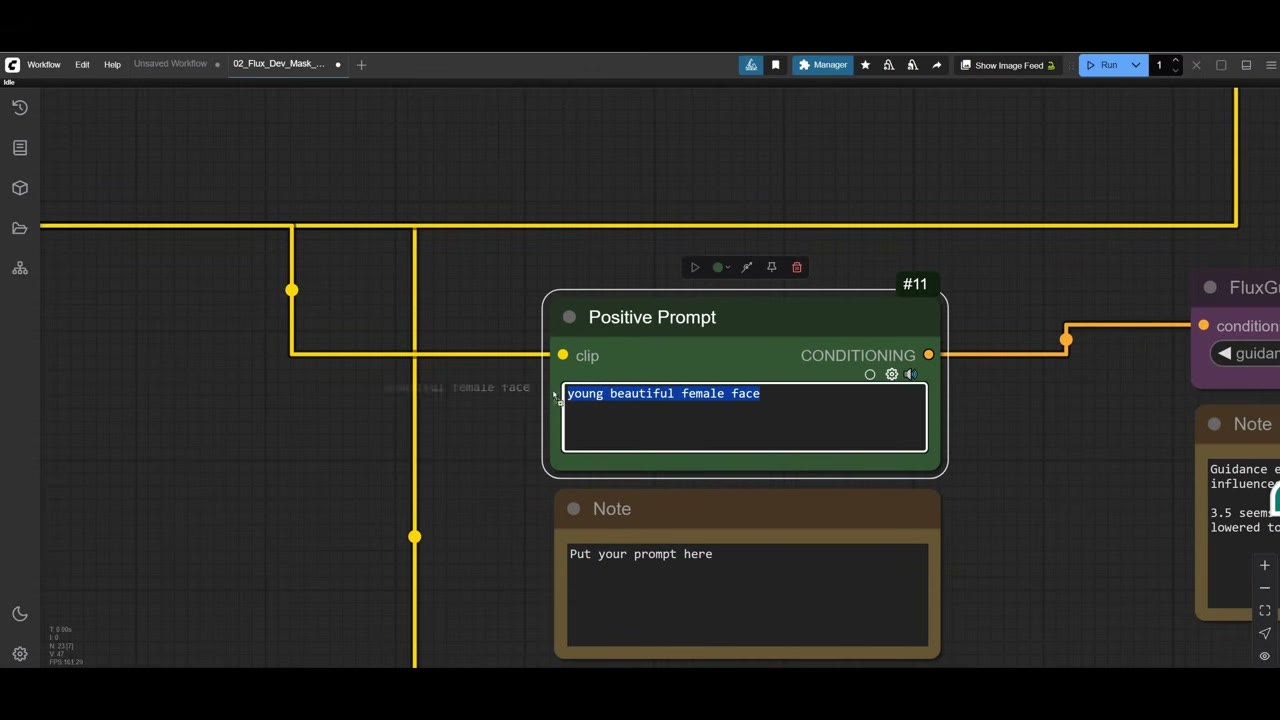
- Positive prompt through Flux Guidance: “two hands, five fingers” guides the redraw. Change it for anything else (I’d left a face prompt in at first, from another job). The negative prompt stays empty; Flux doesn’t need one.
4. The settings that matter
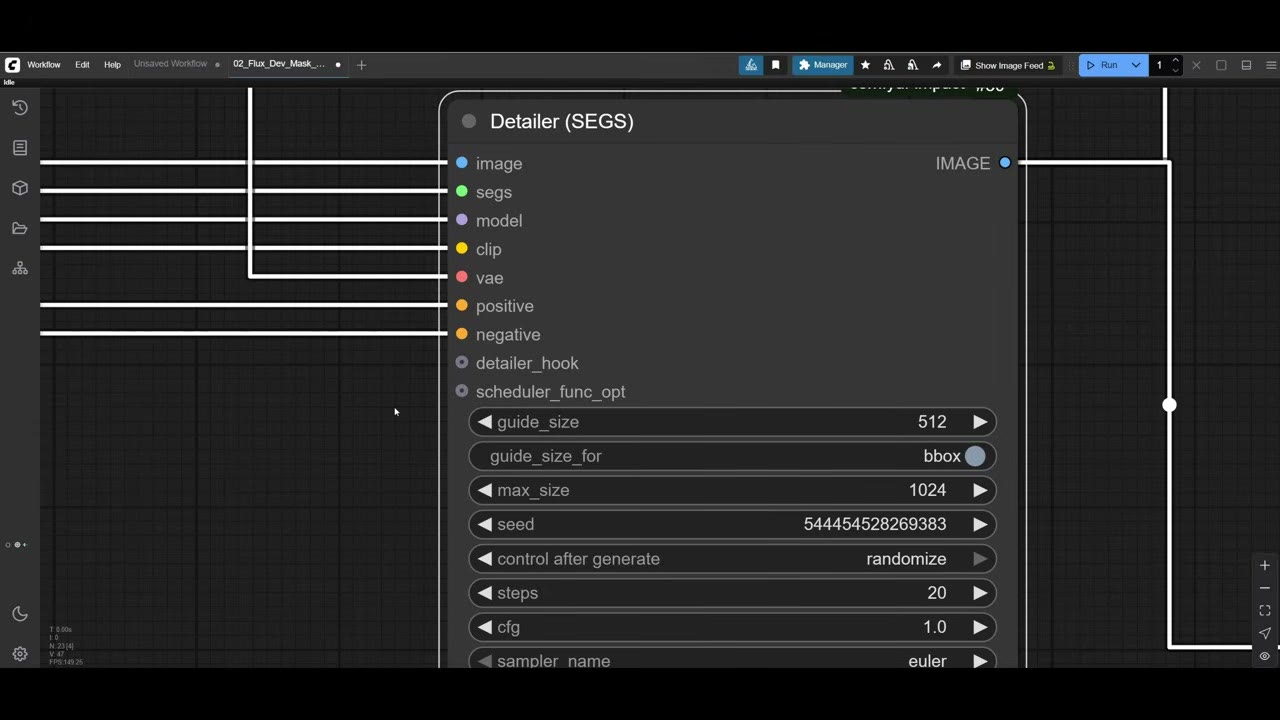
- Guide size: 512 by default. Raise it to 1024 for even more resolution, at the cost of time.
- Steps: raise for quality, lower for speed.
- Denoise is the most important. It sets how much of the original area is replaced with fresh noise. Below 0.5, the model invents something unrelated (a metal bucket or another head in place of the hand). Too low, and it keeps your old, ugly hand. 0.6 to 0.75 worked for me.
An rgthree image comparer shows the before and after.
The paint-over trick for hard cases
Sometimes a hand won’t fix: an extra finger survives, because during denoising the model blurs that area but still sees something finger-shaped there, and redraws it. Even Flux gets this wrong.
The fix takes a minute: paint out the awkward shape first. In Photoshop, or Photopea, a free online editor that works the same way, shave off the extra finger or shorten an awkward one. Then mask it in ComfyUI and run again.
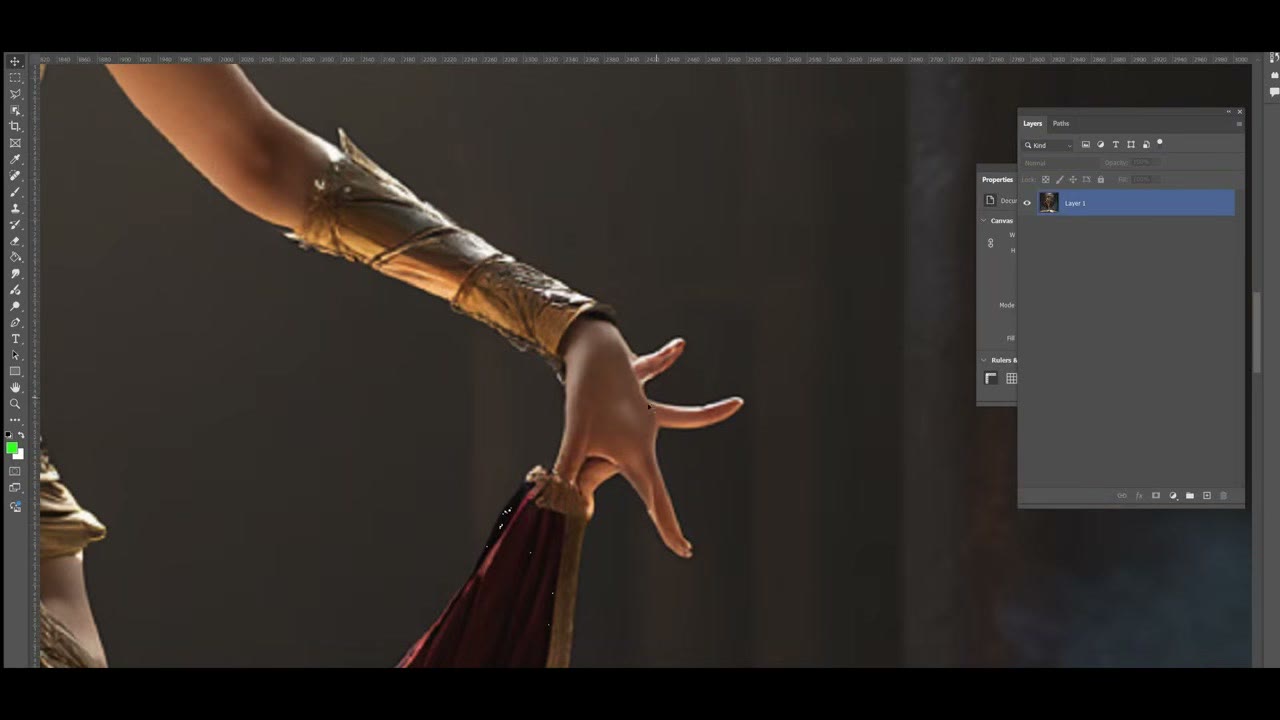
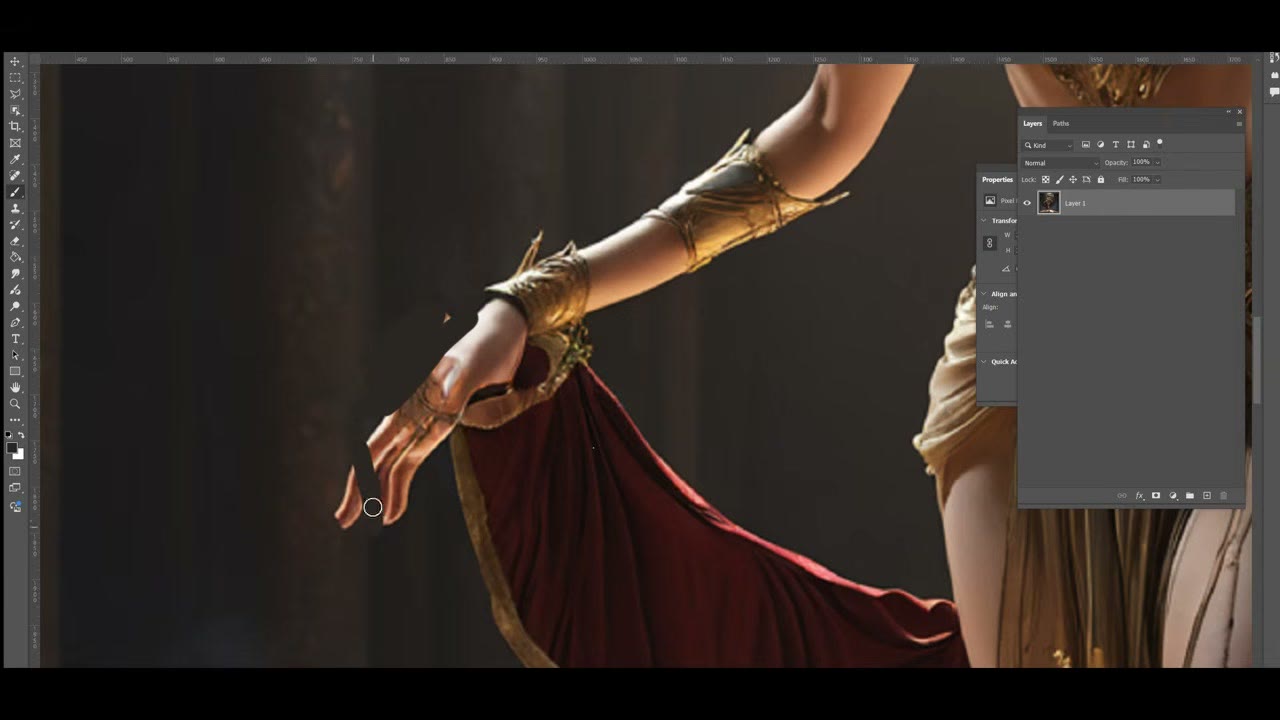
Very awkward shapes cause most of the failures, so this small step helps immensely.
Run it, and run it again
The first run is slow while Flux loads (about a minute). After that, a fix took about 16 seconds, so run it many times. My first result was better than the original but not perfect: the bottom hand was a bit broken. After a few more runs, the hands came out really nice, holding a lightsaber with two intertwined hands. I don’t think any SDXL setup could manage that.
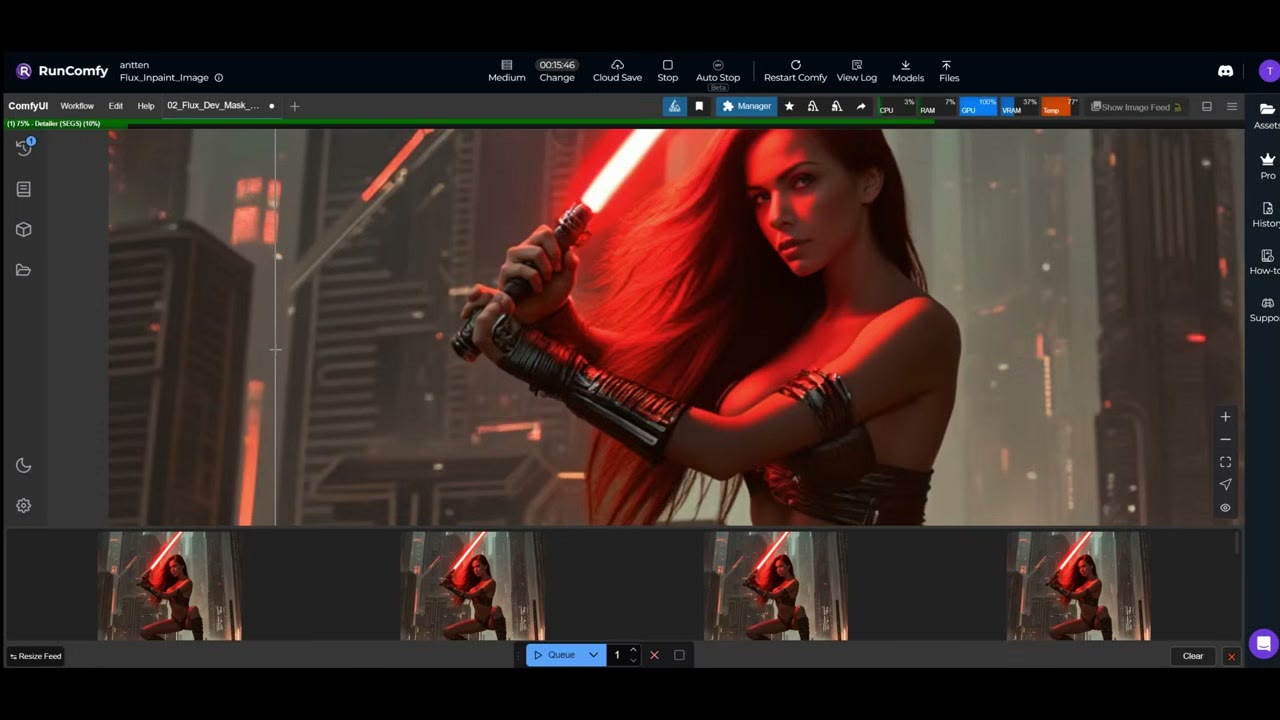
Results are saved to ComfyUI’s output folder.
No GPU for Flux?
This workflow is on RunComfy, ready to run in the browser, with free trial minutes. You mask the hand exactly as you would locally. I used to pay for RunComfy in 20–30 minute blocks; today I run this kind of work on RunPod (see my introduction to RunPod). The workflow, with my others, is also on my Patreon.
The RunComfy link is a referral link, as is my RunPod referral link: new RunPod accounts that sign up with Google get $5–$500 in credit after their first $10, and I get a small commission.
Watch the video version (7:14)
Everything above is in the video too, if you'd rather follow along on screen.
FAQ
What is the best open-source model for fixing AI hands?
Flux. It handled hands that SDXL couldn’t, like two hands wrapped around a lightsaber grip.
What denoise value should I use to fix hands?
Between 0.6 and 0.75. Below 0.5 the model creates something random in that spot; too low and it keeps the old, broken hand.
Why do hands come out broken in the first place?
Too few pixels. In a full-figure image the hand is tiny. Cropping it and rendering it at 512 pixels gives the model room to draw it properly.
What if the fix still has an extra finger?
Paint the extra finger out before masking, in Photoshop or the free Photopea, then run it again. Awkward shapes confuse even Flux.
Anton Tenitsky is a 3D artist with 15+ years in computer graphics, working with Nickelodeon, Gameloft, Marvel Rivals and many other clients. More about me