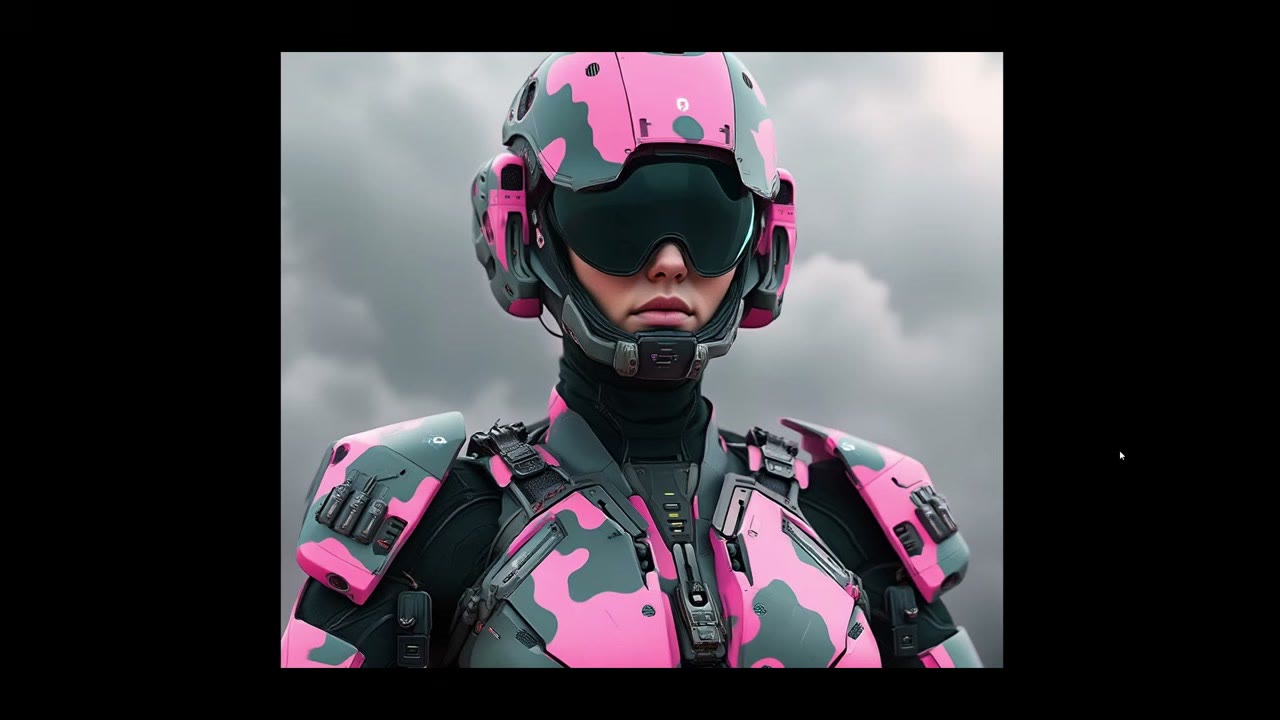
A prompt list lets you render many variations of the same subject while you sleep: 50, 300 or 500 prompts, depending on how you structure it. I used it for different styles and colours of my 3D blockouts. It works with Flux, SDXL or Stable Diffusion; Flux generally gives prettier results.
This guide covers three setups, from simple to complex: one list against one image, the same list with a fixed subject and background added, and a folder of screenshots cycled together with matching prompts. The depth ControlNet side, which turns the 3D screenshot into the image’s structure, is covered in the automated 3D-to-concept-art pipeline. Here I concentrate on the prompts.
In short
- Packs: Inspire Pack, rgthree, WAS Node Suite and WWAA custom nodes.
- The file:
positive:line,negative:line,---, repeated. Lowercase only. - Location: inside the Inspire Pack’s folder in
custom_nodes. - Concatenate a subject (“tank”) and a background onto every style.
- Images + prompts: same count, same order, one counter driving both.
Simpler option: if you only need one prompt per line, without negatives or images, my Prompt Cycler node does it in one node.
Install the nodes
You need the Inspire Pack, rgthree, the WAS Node Suite and the WWAA custom nodes (for the nested loop counter), all from the ComfyUI Manager. It’s a bit of a complex install. When I looked around, other options let you run three or five prompts at a time, but I couldn’t find one for 50 or 100.
Write the prompt list
The list is a plain .txt file. I describe styles, not objects: no tank, soldier or robot, just a generic description of the look. The object is added later with concatenation.
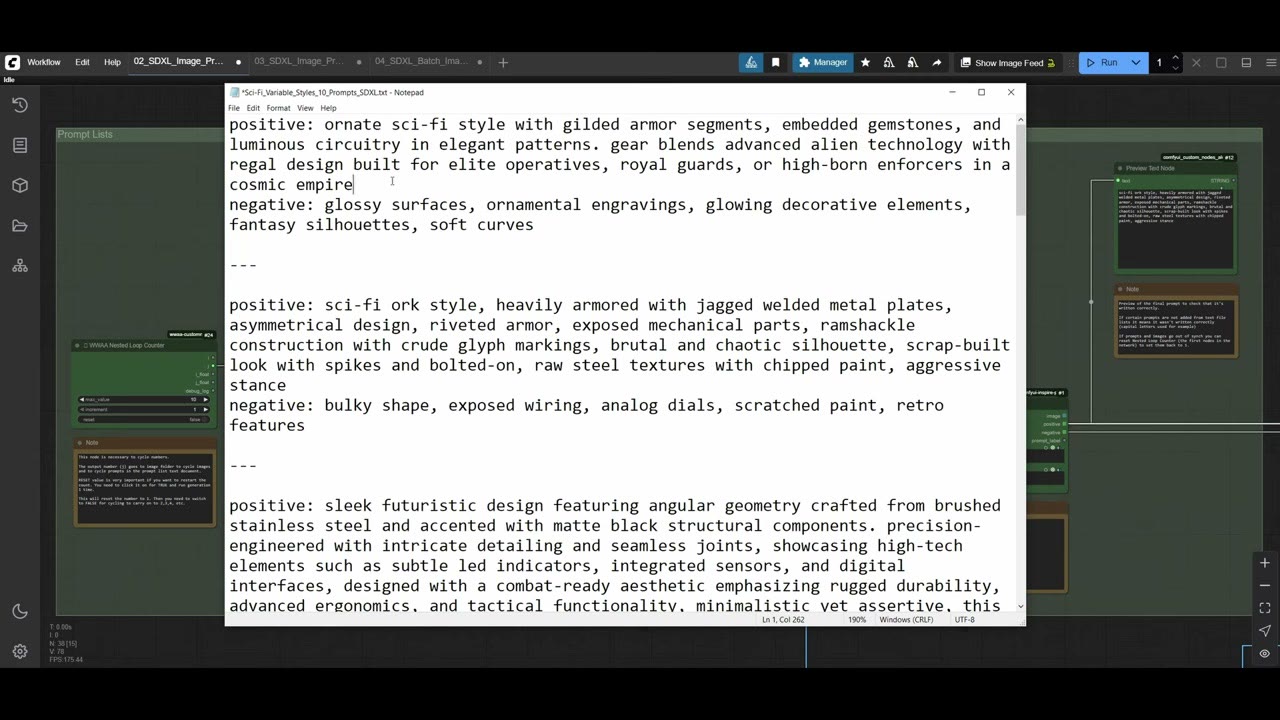
The formatting is very important:
positive: ornate sci-fi style with gilded armor segments, embedded gemstones, ...
negative: glossy surfaces, ornamental engravings, glowing decorative elements, ...

---

positive: sci-fi ork style, heavily armored with jagged welded metal plates, ...
negative: bulky shape, exposed wiring, analog dials, scratched paint, retro features

---- Start lines with lowercase
positive:andnegative:. With a capital letter, the list doesn’t work; it’s very sensitive to this. - Separate entries with three dashes (more is fine).
Writing lists with ChatGPT: paste an entry in this format and ask for, say, 10 sci-fi styles. You usually have to tweak it and ask it to keep the dashes and not add random text. One annoyance: you can’t easily tell how many entries you got. I asked for 50 and got 47; I only found out by pasting into a Google Doc and searching for “positive”. If you know a better way, tell me in the comments.
An LLM inside ComfyUI can generate prompts too. It sounds great, but it’s slower, less predictable, and a good model can be about 10 GB. A prompt list takes milliseconds.
Where the file goes: inside the Inspire Pack’s folder in custom_nodes (I use its example folder). Subfolders work, and it sees every text file in them, but it won’t read any other location.
Setup 1: a simple prompt list
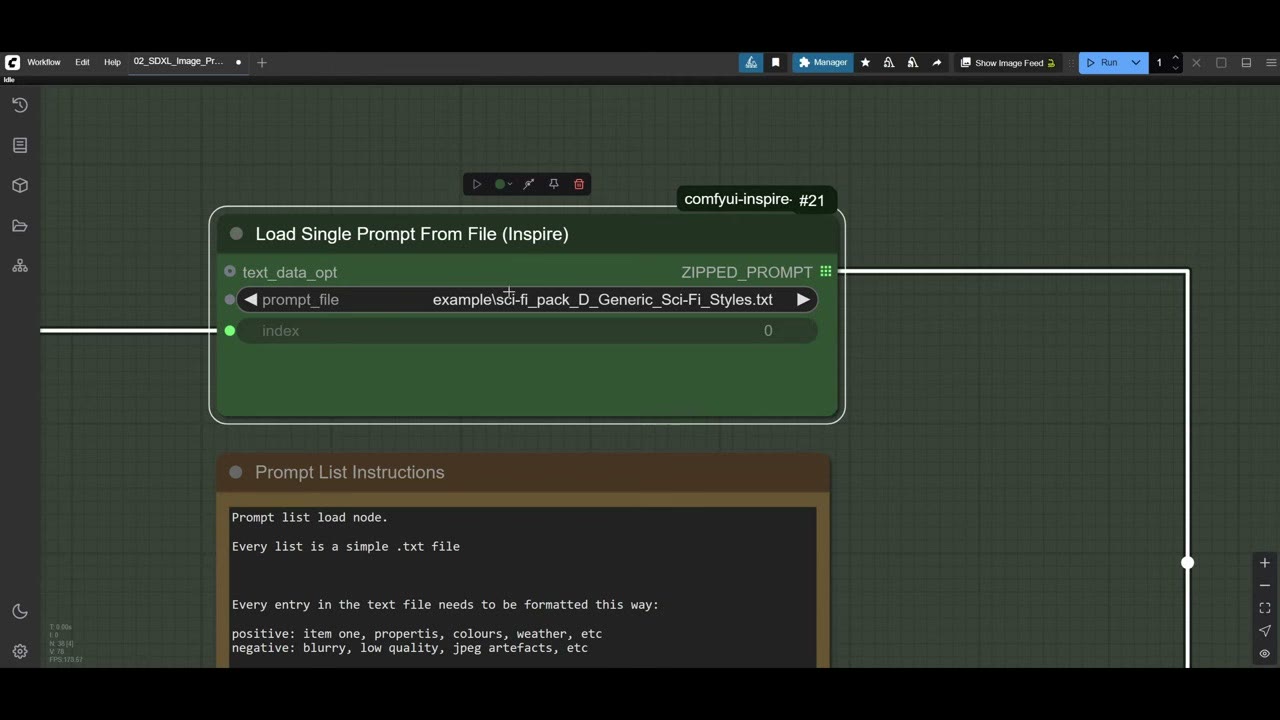
- Load Single Prompt From File (Inspire) loads the list. Choose the file; its index input selects the entry.
- Its ZIPPED_PROMPT goes into the Unzip Prompt / Bind node, which outputs positive and negative. That node also has prompt fields and an image input. Whatever you type there doesn’t carry on, and in my setup the image input had to be filled for the node to work even though the image goes nowhere.
- Positive goes to a Preview Text node (to see the current line) and into the positive CLIP Text Encode.
- A Nested Loop Counter (WWAA) feeds the index: set its maximum to the number of entries, 10 here. A Display Int shows which entry is running.
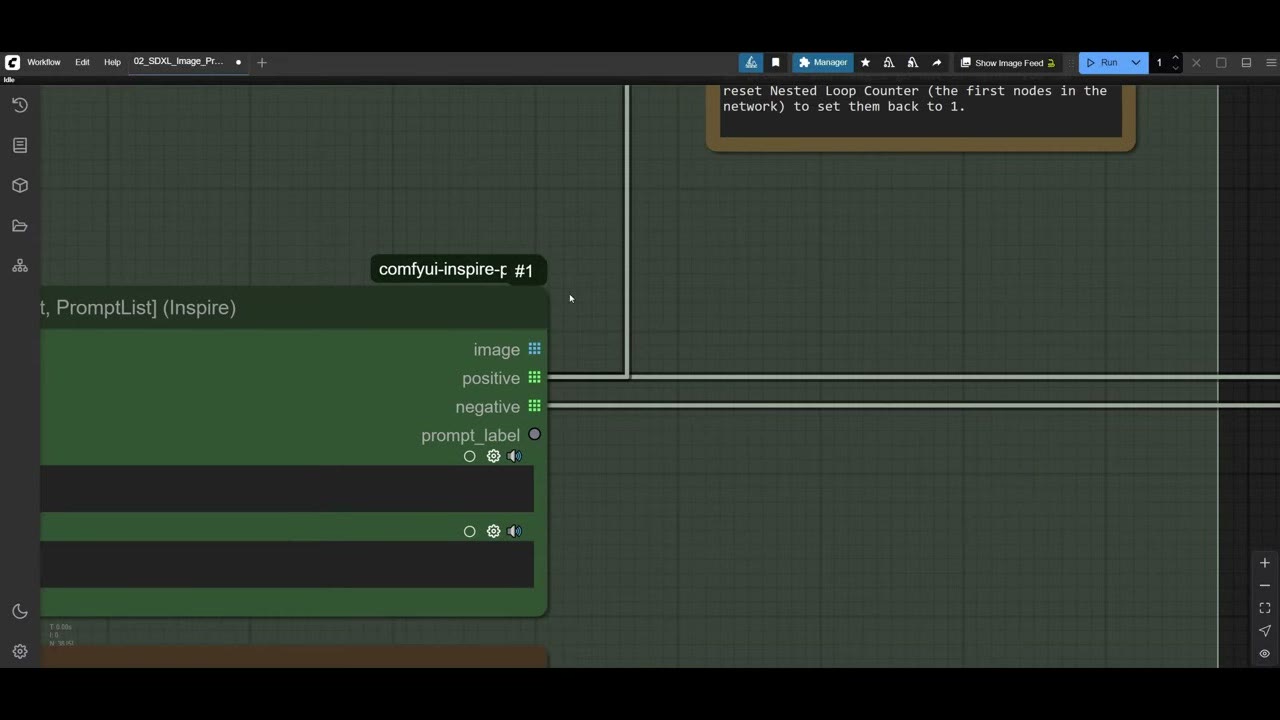
Test it before rendering: bypass the image nodes (select them, Ctrl+B) and run with Ctrl+Enter. If the file name is wrong, it errors. Otherwise the preview text and counter update with each run as it moves through the list. Keep the preview text node active while troubleshooting.
Setup 2: add a subject and a background
Add a Text Concatenate node (WAS). The prompt list goes into text_a, and text_b is a longer string I paste in with more styling. Usually I put the actual item there (“tank”) plus a setting: “background winter landscape”, “alien planet” or “desert”.
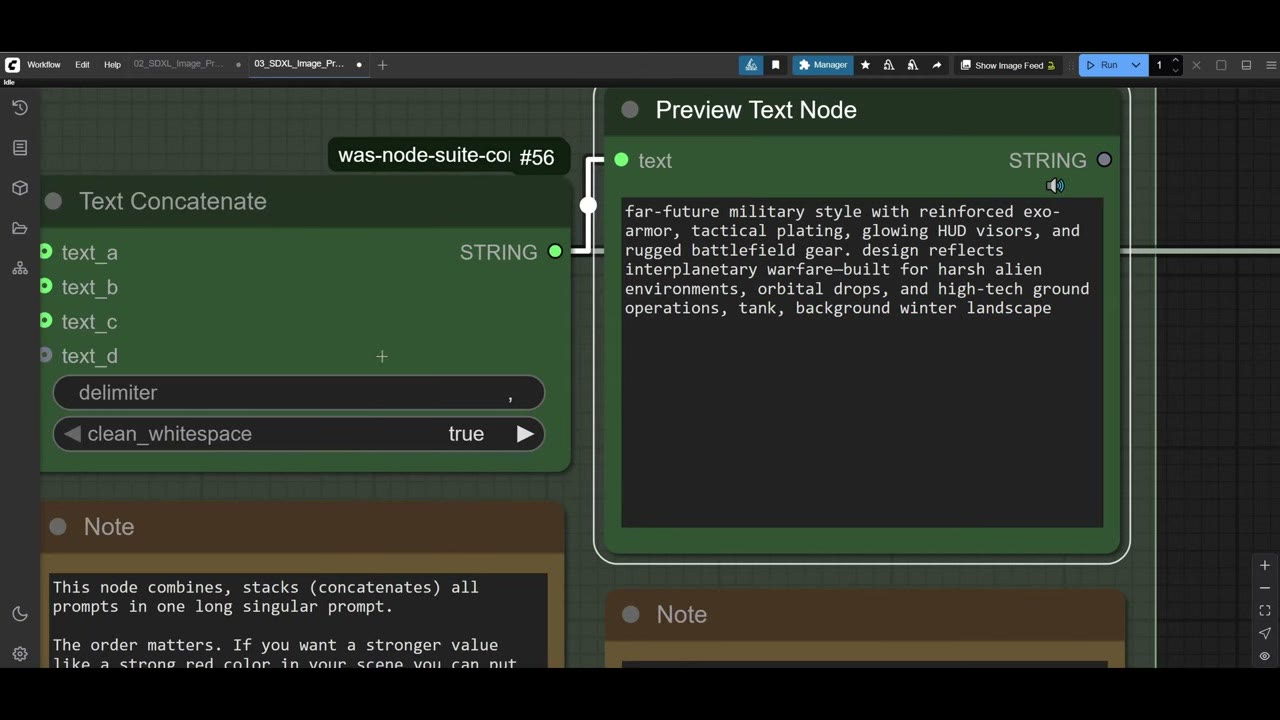
Some styles worked better than others: “clean medical tech” didn’t give great results; a “high empire sci-fi” style (think Jupiter Ascending) gave the best pictures; “industrial cyberpunk” was good too.
Order matters. Put the most important words first. To weight the subject more, swap the inputs so “tank” comes first. This matters most for SDXL, but it helps with Flux too.
Setup 3: a folder of images with matching prompts
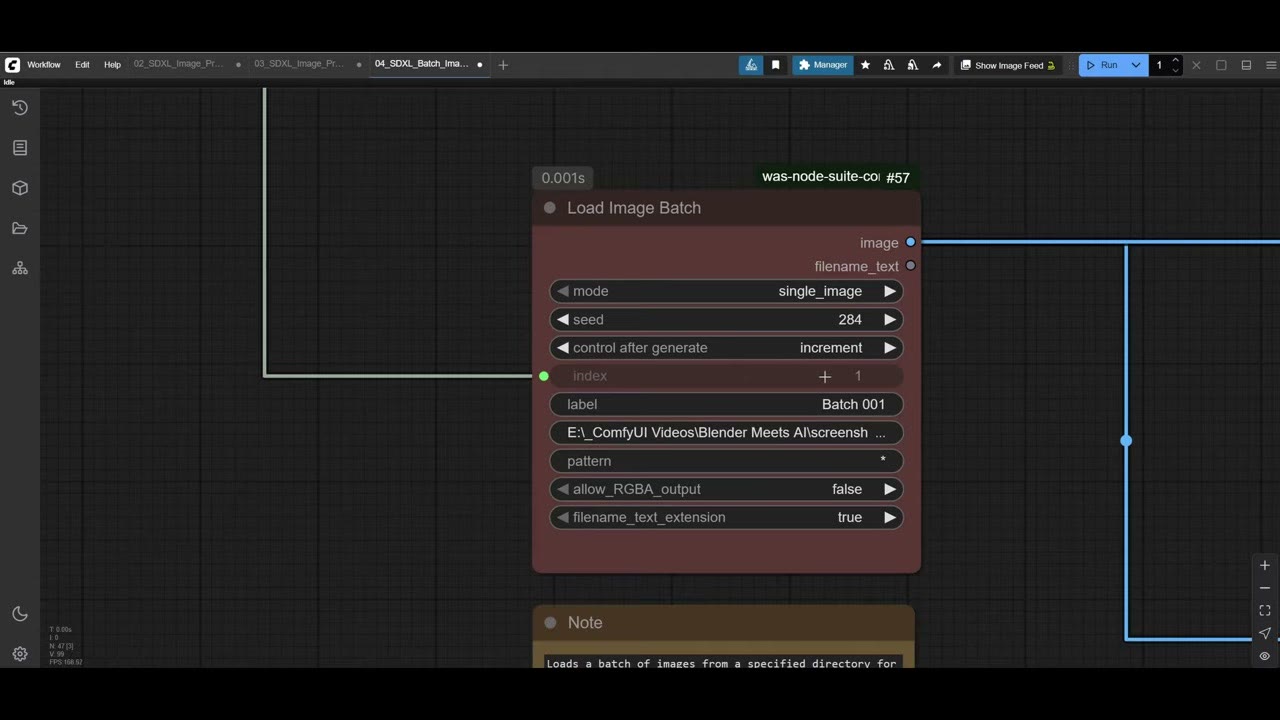
Here 18 screenshots of different props cycle together with the prompts. The tricky part is keeping them in sync: when the APC screenshot is loaded, the prompt has to say “military APC”.
- Write the list for the folder. 18 images, 18 prompts, in the same order: if image 5 is a knife, prompt 5 is a knife; 8 is a drone; 12 is a spaceship. These prompts name the object only, with no styling, because the style comes from the concatenate node (here with “blue background” to isolate the props).
- One counter drives both. The counter’s integer goes into the prompt index and into the index of Load Image Batch (WAS), so the fifth run loads the fifth image and the fifth prompt.
- Set the counter to 18. I’d left it at 10 at first.
Reset the counter
To start again from the first entry, set the counter’s reset to true and run once (the number goes to zero), then set it back to false and run again.
Which setup to use
Honestly, I usually run the simple list with concatenation against one object: 50 styles of one tank. When I need to test many concept ideas overnight, matching a folder of screenshots to a list is very useful. My final version of this workflow also sorts images into vertical and landscape (see sorting images by aspect ratio) and runs 18 objects against 54 style entries.
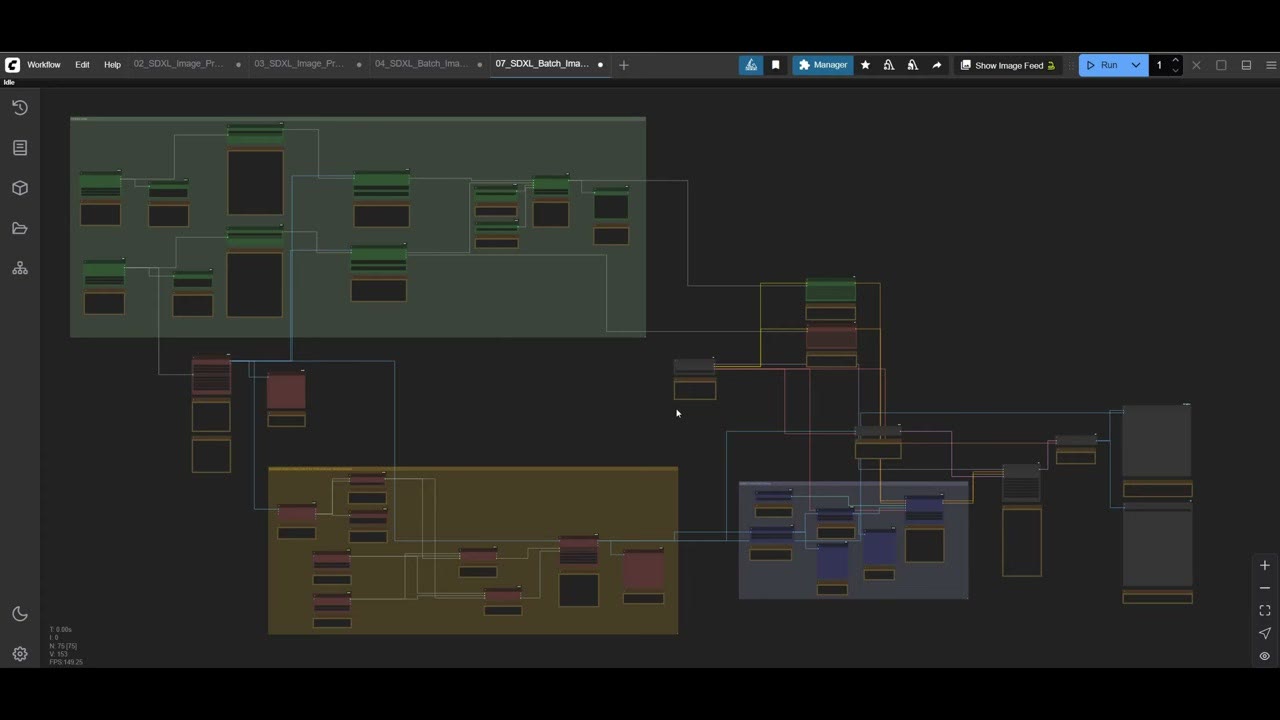
The system is a bit complicated. A custom node that read the number of images in a folder and helped with the prompts would make it easier; I later built a simpler Prompt Cycler for the prompt side. The workflows are on my Patreon for SDXL and Flux.
Watch the video version (10:48)
Everything above is in the video too, if you'd rather follow along on screen.
FAQ
How do I format a prompt list file for the Inspire Pack?
Each entry is a line starting with “positive:”, a line starting with “negative:”, and a separator line of three dashes (---). Use lowercase “positive” and “negative”; with a capital letter the list doesn’t load.
Where do prompt list files go?
In the Inspire Pack’s own folder inside custom_nodes (for example its prompts/example folder). It reads any subfolder there, but not other locations.
How do I match a folder of images with a list of prompts?
Write the prompt list in the same order as the images, with the same number of entries, and drive both the prompt index and the Load Image Batch index from one counter.
Why not use an LLM inside ComfyUI to write the prompts?
It works, but it’s slower and less predictable, and a good model can be around 10 GB. A prompt list loads in milliseconds.

Anton Tenitsky is a 3D artist with 15+ years in computer graphics, working with Nickelodeon, Gameloft, Marvel Rivals and many other clients. More about me