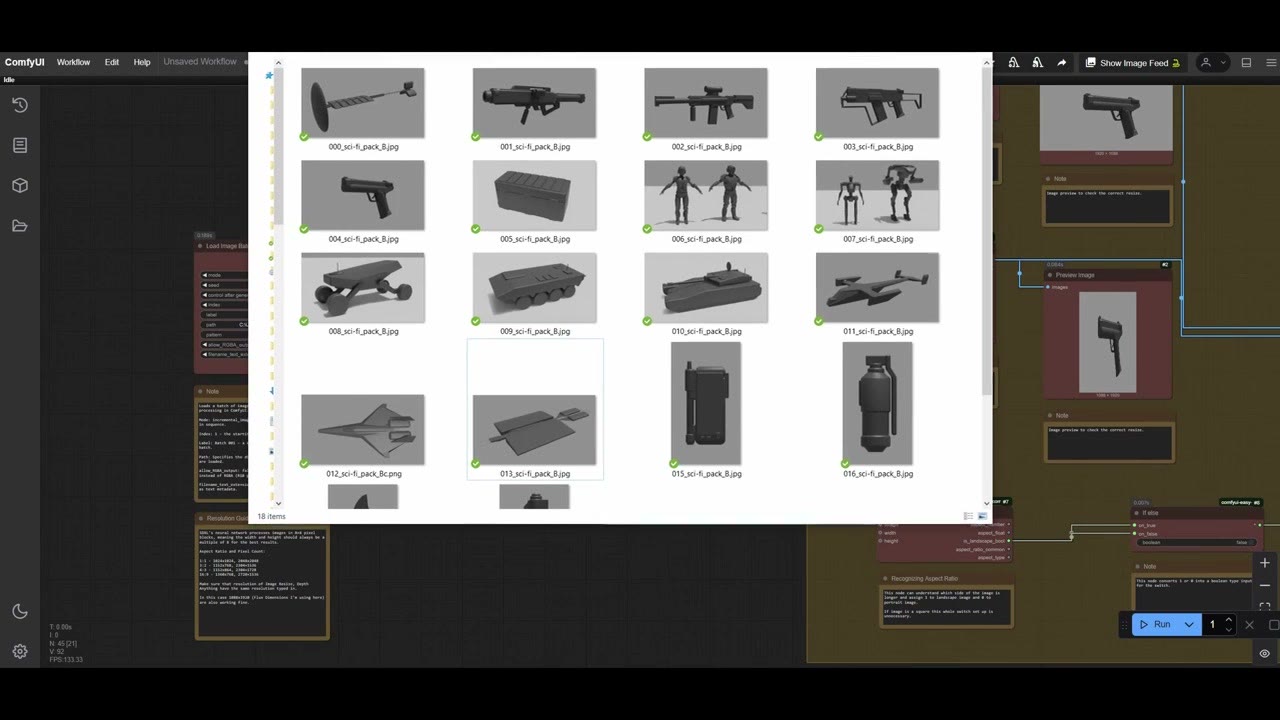
When you run a whole folder of images through a workflow, some are landscape and some are portrait. Resize them all to one shape and half of them get squashed. The fix is a small piece of logic that checks each image’s orientation and picks the right size, a boolean switch: on or off, A or B.
As an artist, booleans were a new concept for me and took a while to figure out, so this guide explains it from scratch. It uses no AI models at all; it’s pure logic, part of my bigger automated 3D-to-concept-art pipeline. I show two versions: one that switches images (easier to follow) and one that switches numbers (faster).
In short
- Image Aspect Ratio (WAS Node Suite) outputs 1 for landscape, 0 for portrait.
- Pass it through an If/else node; the switch won’t accept it directly.
- Version 1: resize every image both ways and let an Image Input Switch pick the right one.
- Version 2: switch only the width and height numbers, with two Number Input Switches. Faster, and what I use.
- Square images aren’t handled; if all yours are square, you don’t need this.
The shared start: detecting orientation
Both versions start the same way.
- Load Image Batch (from the WAS Node Suite) points at a folder, in incremental image mode, so every run loads the next image and loops forever. For testing I used a folder of only three images, so I could cycle through quickly.
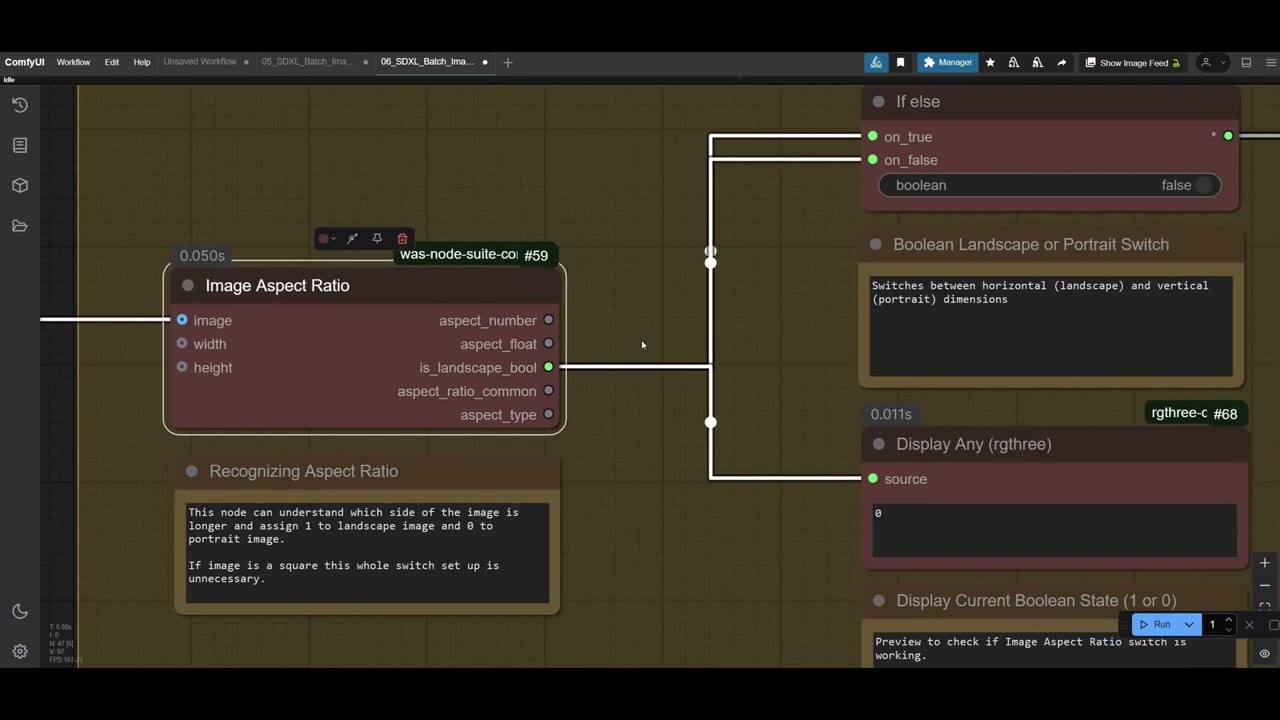
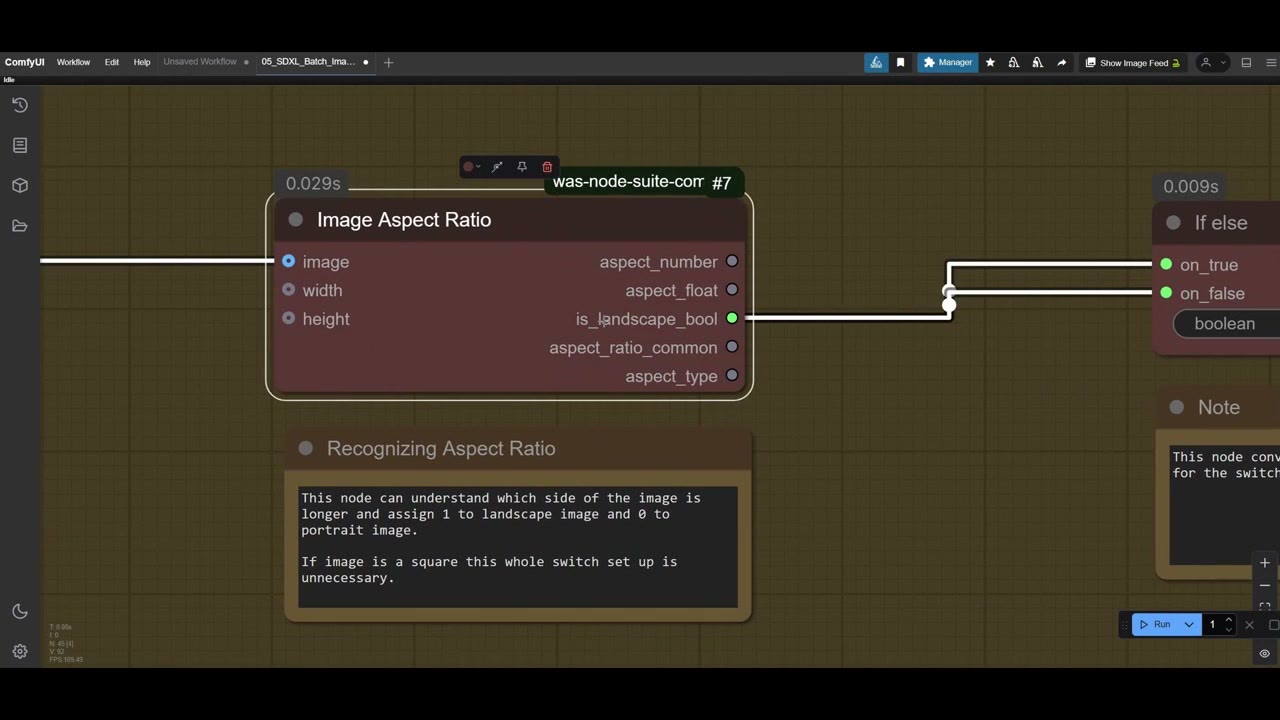
- Image Aspect Ratio (also WAS) reads the image and outputs
is_landscape_bool: 1 if the image is landscape, 0 if it’s portrait. That’s the boolean. - A Display Any node (from rgthree) shows the value: 1 or 0. It’s only for troubleshooting, and for showing others how it works.
- An If/else node passes the value on. You can’t connect the aspect ratio output straight to a switch’s boolean input; going through If/else makes it work.
Version 1: switch between images
The easiest way to see what’s happening.
- Resize each incoming image twice: once to a landscape size and once, forcefully, to a portrait size. Use sizes that suit Flux and SDXL.
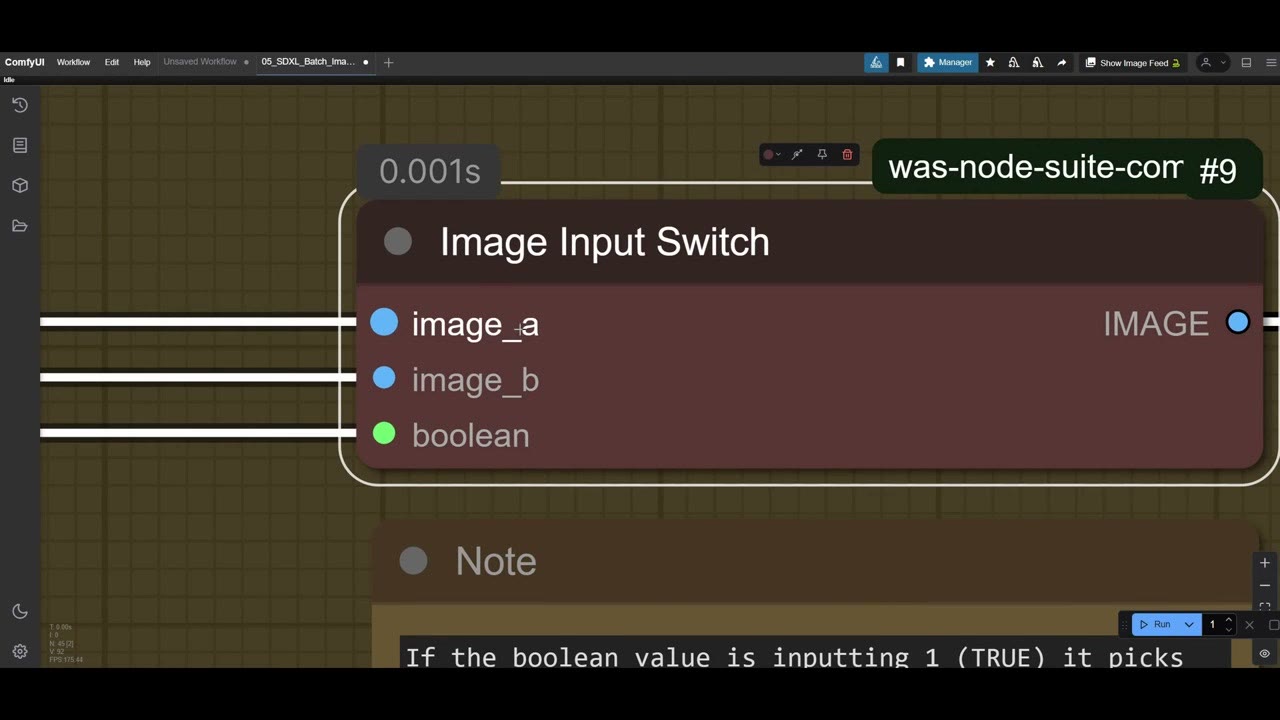
- Connect both into an Image Input Switch (WAS): the landscape one to image_a, the portrait one to image_b, and the boolean to the switch.
- If the boolean is 1 (landscape), the switch outputs image A; if 0 (portrait), image B.
A preview after the switch confirms you got the right shape and size.
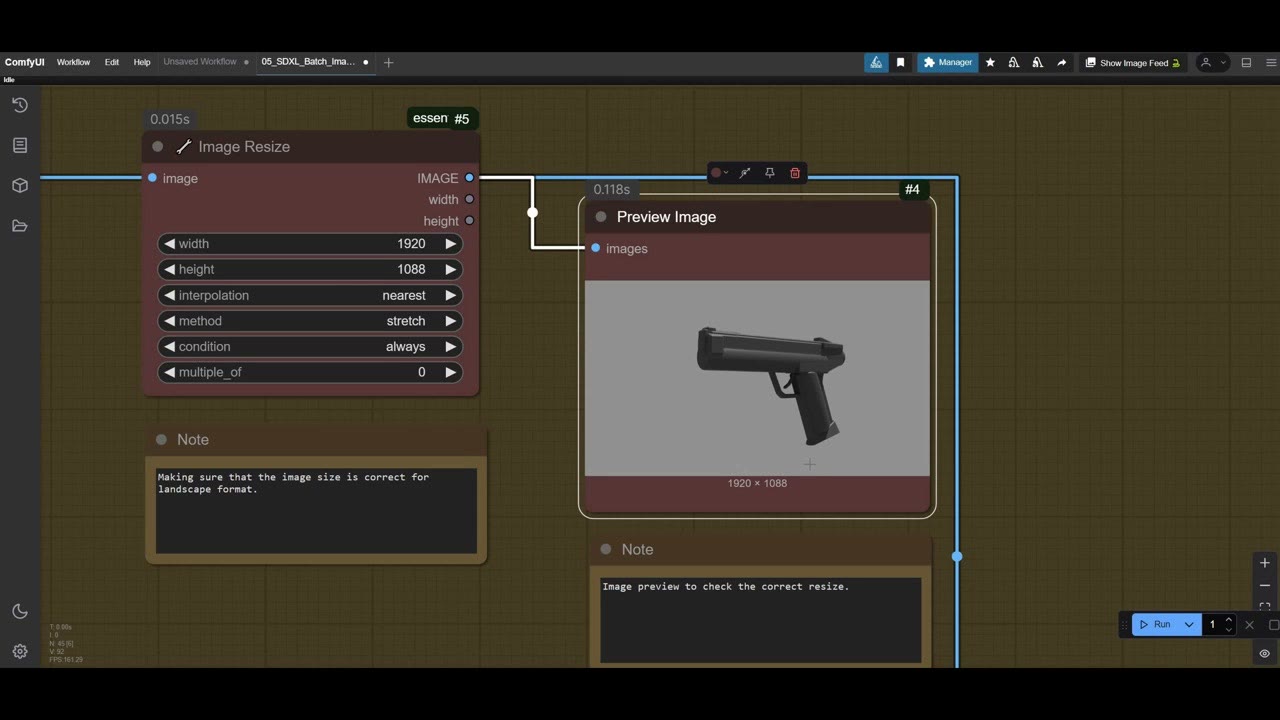
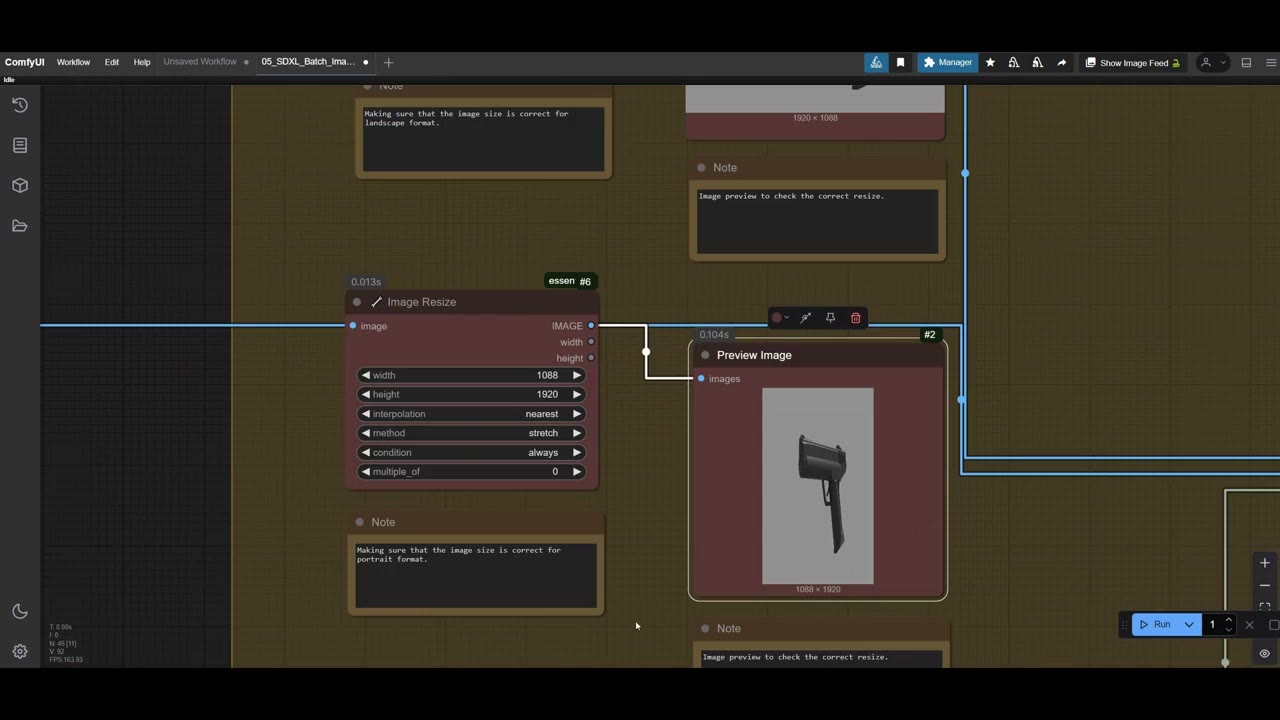
The same trick works outside image generation. Want to sort thousands of photos into a landscape folder and a portrait folder? It’s this switch with two save nodes.
The catch: every image is resized twice and both copies are held in memory. That costs time on every run, which is why I built version 2.
Version 2: switch between numbers
Instead of switching images, switch only the sizes. Nothing extra is kept in memory. This version has its own short video: part 2.
- Two Constant Number nodes hold the sizes: 1920 for the long side and 1088 for the short side.
- Two Number Input Switches (WAS), one for width and one for height, both driven by the same boolean.
- Landscape (1): the width switch picks number A (1920) and the height switch picks 1088. Portrait (0): they pick the other way round, 1088 wide and 1920 tall.
- The chosen width and height go to the image resize and on to the rest of the workflow.
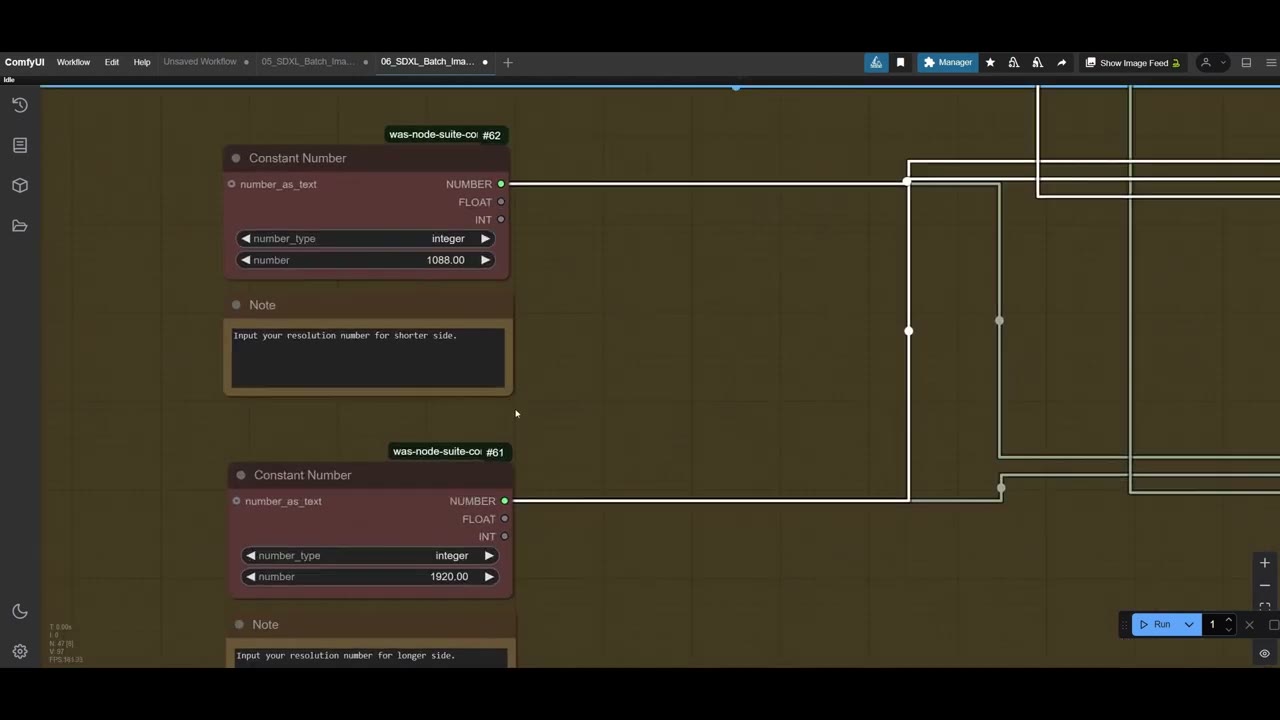
It’s harder to read than switching images, but it’s durable, it doesn’t break, and the preview at the end always shows whether it’s working. It lets you run any number of images through, resized to the largest size SDXL or Flux handles well in either orientation.
Beyond images
A boolean switch is a building block for anything in ComfyUI. You can switch based on text you type, a description or a prompt. Once it clicks, it opens up a lot of automation. If you know a more efficient way to do this, I’d be keen to hear it in the comments on the video.
This switch is part of a bigger package of workflows on my Patreon, along with the depth setup it feeds into. That setup is explained in sketch to art on a 4 GB GPU.
Watch the video version (4:50)
Everything above is in the video too, if you'd rather follow along on screen.
FAQ
How does ComfyUI know if an image is landscape or portrait?
The Image Aspect Ratio node from the WAS Node Suite outputs a boolean: 1 (true) for landscape, 0 (false) for portrait. You use that value to switch between images or numbers.
Why do I need the If/else node?
The aspect ratio output can’t be plugged straight into the switch’s boolean input. Passing it through an If/else node converts it into a value the switch accepts.
What about square images?
This setup doesn’t handle them. If your images are square, you don’t need the switch at all.
Anton Tenitsky is a 3D artist with 15+ years in computer graphics, working with Nickelodeon, Gameloft, Marvel Rivals and many other clients. More about me