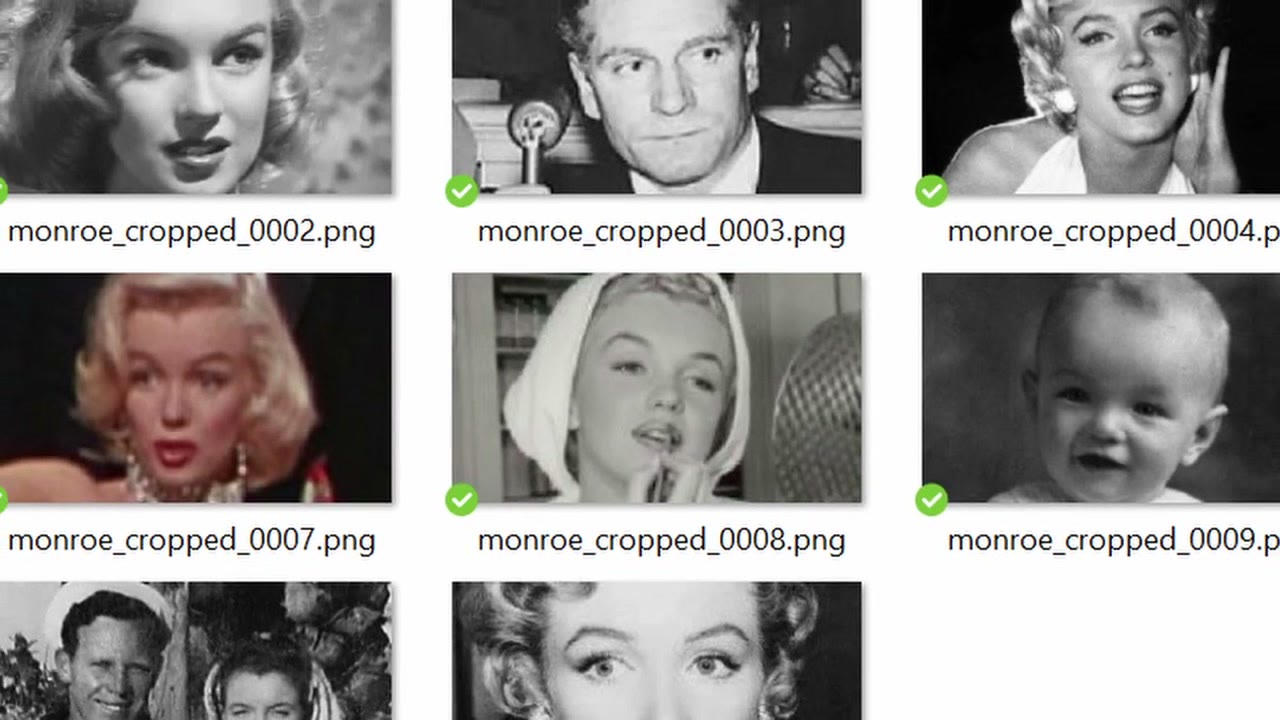
I needed to crop a pile of photos around the face: vertical photos, turned into horizontal frames for a video. A basic crop takes the middle of the image, or the top or bottom if you tell it to, but it can’t find the subject. With AI it can. This workflow finds the face in every photo of a folder and crops a clean frame around it. It can just as easily crop around hands, a t-shirt, or anything else you can name.
I demonstrate it on public-domain photos of Marilyn Monroe.
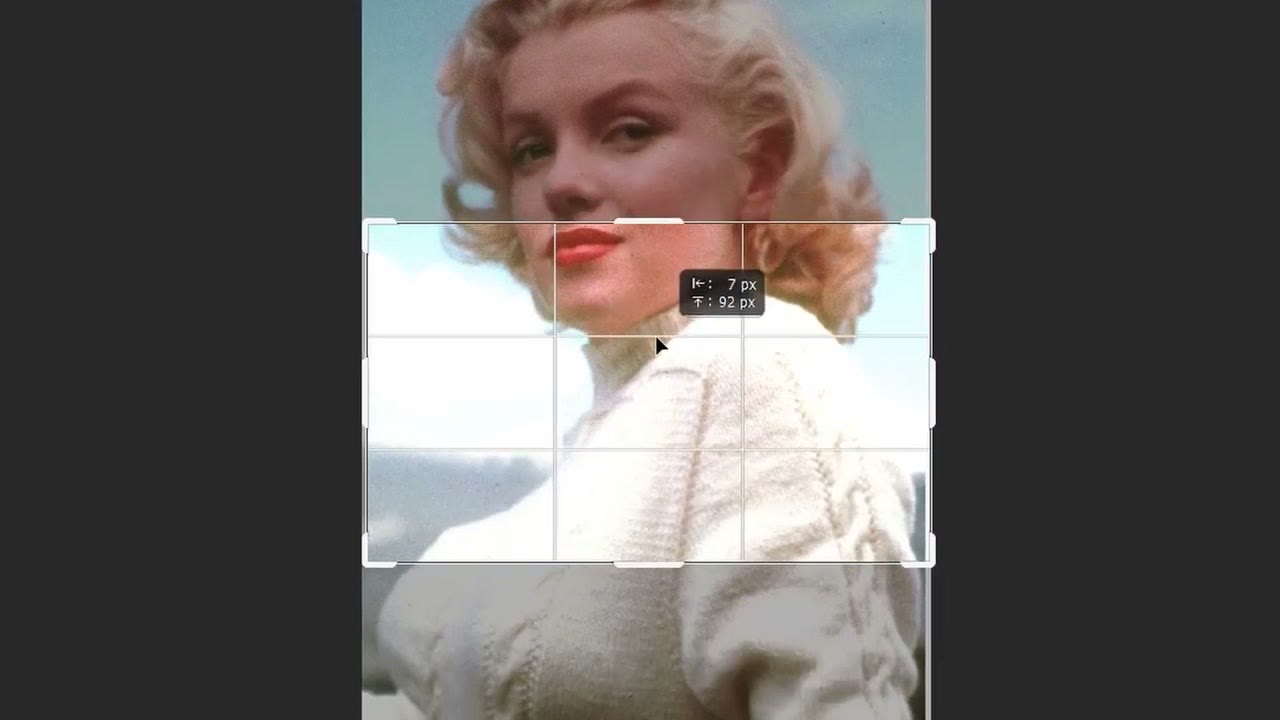
In short
- Load a folder of photos with Load Image Batch (incremental mode).
- Find the face with Florence 2 (task: caption to phrase grounding).
- Grow the mask so the crop has room around the face.
- Crop by mask, then resize with a fill crop to an exact size (1920 × 1080 for me).
- Speed: 500–1,000 photos in about 20–30 minutes.
The workflow is on my Patreon. Below is how each part works.
1. Load and resize the photos
Load Image Batch points at your folder, in incremental image mode, so each run takes the next photo.
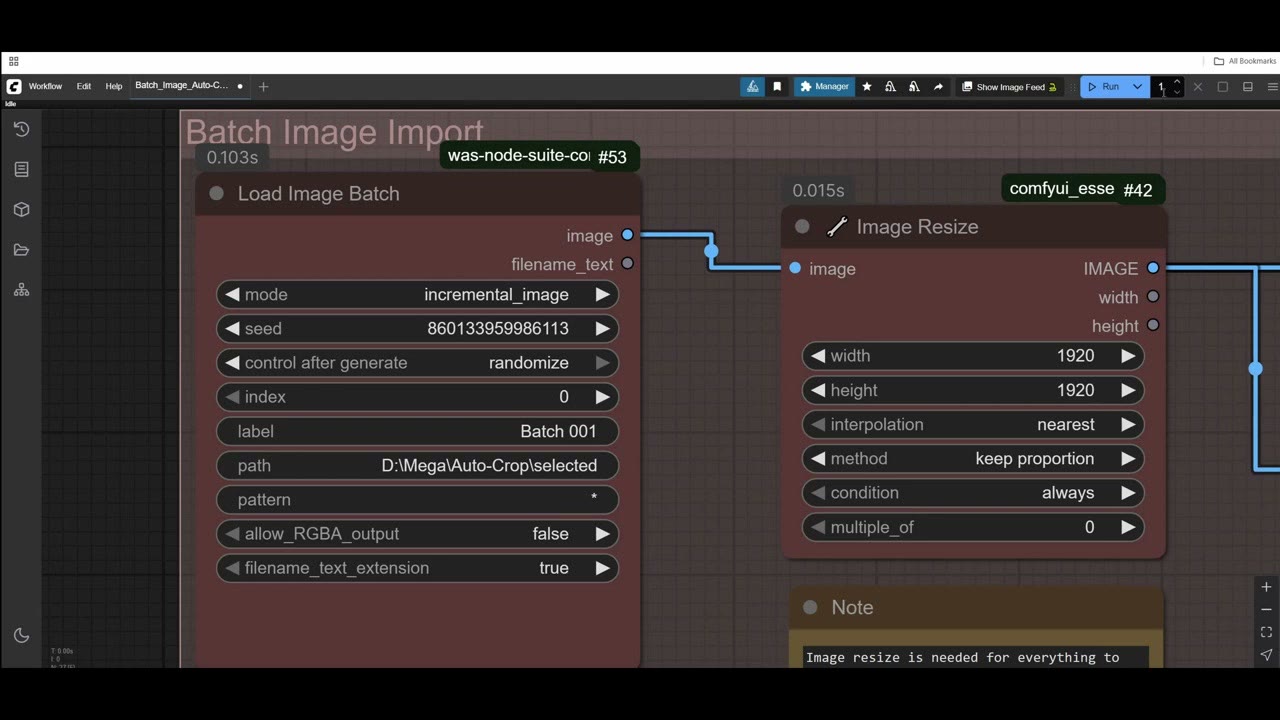
How many runs? Set the batch count to the number of photos, for example 18. The batch count stops at 100, though. For 500 photos, use Run (Instant), which keeps queueing until you stop it. It’s quick: leave it for 20–30 minutes and a thousand photos are done.
Next, an Image Resize node scales each photo so its longest side is 1920 pixels, keeping proportions. My photos fitted a vertical Full HD frame well this way.
2. Find the face with Florence 2
Install the Florence 2 pack from the ComfyUI Manager. The model downloads itself the first time you run it.
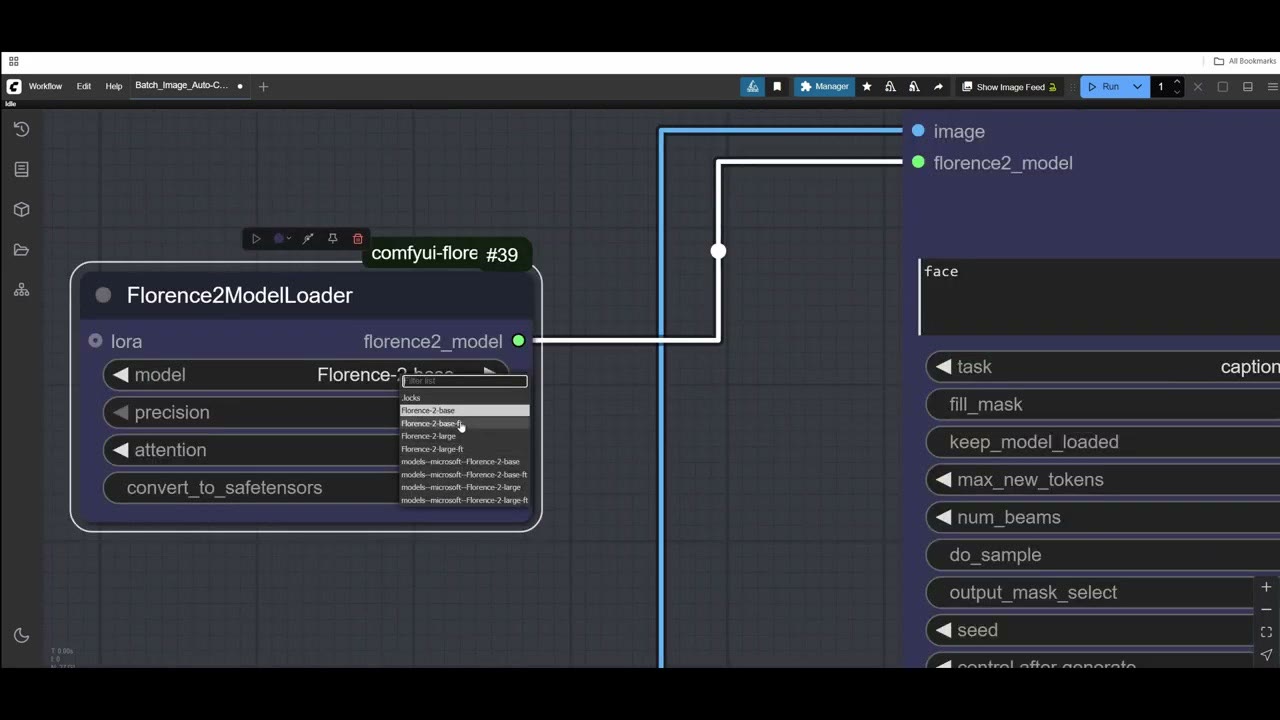
Which model:
- Base: perfect for simple tasks like finding a face, and fast. It doesn’t glitch much.
- Large: quite a bit slower, but it can outline actual shapes, like a hand and arm, rather than just a box.
- Fine-tuned (ft) versions: I never found a use for them; they never gave me good results.
In the main Florence 2 node, type what to find (“face”, “hands”, “t-shirt”) and set the task to caption to phrase grounding. That’s the task that returns a mask of where the thing is. The other tasks do other jobs, like writing a caption of the image, which is useful in other workflows but not here.
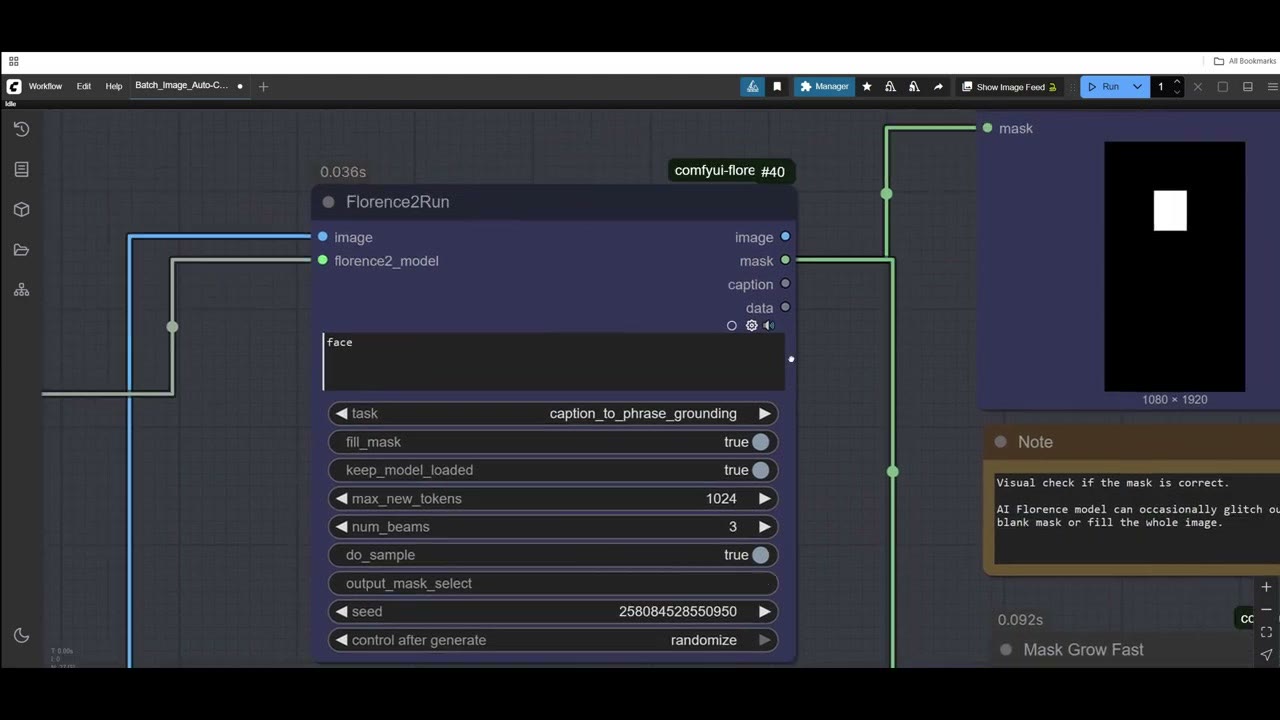
A mask preview shows what it found. Sometimes it grabs too much: on one photo it picked the whole baby instead of the face, and on photos with two people it sometimes found only one face. Try variations like “faces” or “two faces”. I keep the prompt as simple as possible.
3. Grow the mask and set the frame
The detected box is tight, and a crop that tight cuts into the face. A Grow Mask node expands it, by 200 pixels here. Use 0 if you want it tight, and more for very large photos (a 6,000-pixel photo needs a bigger grow). The corners get chamfered as it grows; ignore that, since the final crop is rectangular anyway.
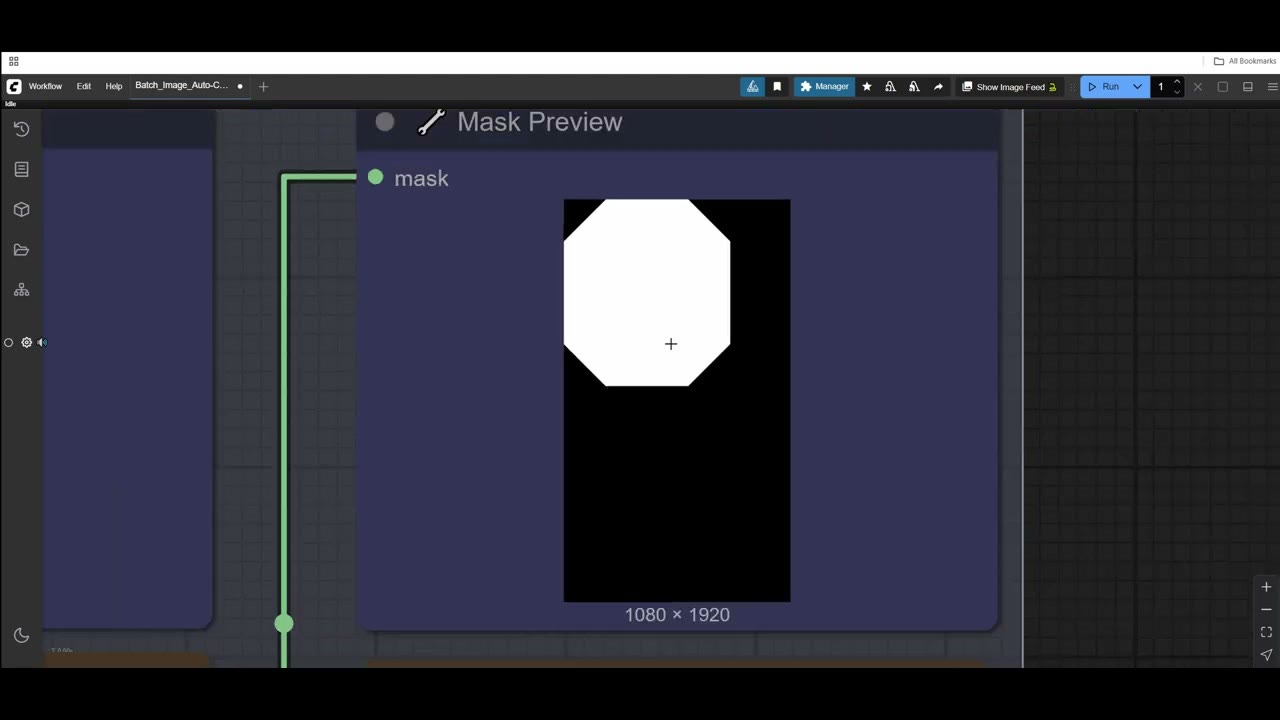
The grown mask can still be the wrong shape for your frame, so it’s cropped to the dimensions I use throughout: 1920 × 1080.
4. Crop and export
Image Crop by Mask takes the original photo from the batch loader and crops it to the mask. That crop can be an awkward size, so a final Image Resize with the fill/crop method brings it to exact HD, trimming a little more if needed.
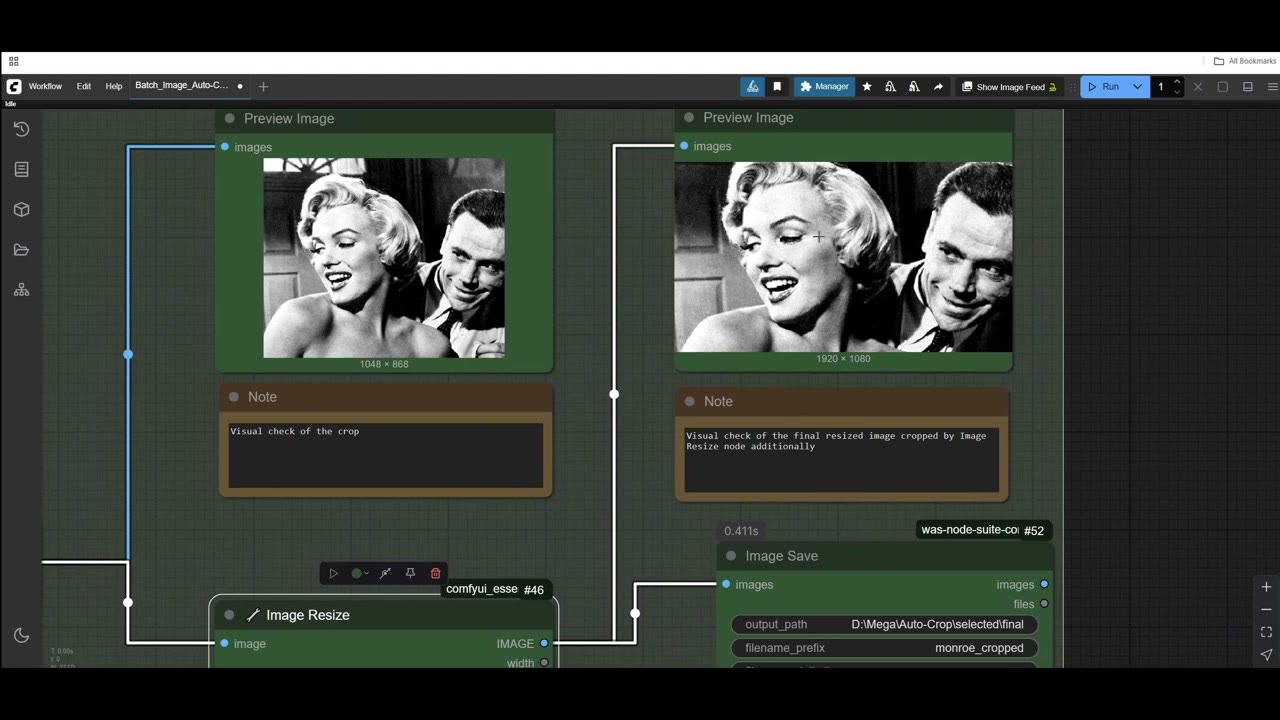
I was after a movie-style frame, and the result was perfect: really nice framing. Save Image writes the files to the folder you set; a note in the workflow explains how the file names are built.
A note on resolution
Because the crop zooms in on the face, the results can be small. If you need them bigger, run them through an upscaler; my free AI upscaling guide has a workflow for that. For more on what Florence 2 can do, see masking anything with Florence 2.
Watch the video version (7:15)
Everything above is in the video too, if you'd rather follow along on screen.
FAQ
How do I process more than 100 images in ComfyUI?
The batch count stops at 100. For more, use Run (Instant), which keeps queueing runs until you stop it. A folder of 500 or 1,000 photos takes 20–30 minutes.
Which Florence 2 model should I use for face detection?
Base is fast and handles simple things like faces well. Large is slower but can outline shapes more precisely. I never found a use for the fine-tuned versions.
Why grow the mask?
The detected box is tight around the face. Growing it (I used 200 pixels) gives the crop breathing room. Grow it more for very large photos.
Anton Tenitsky is a 3D artist with 15+ years in computer graphics, working with Nickelodeon, Gameloft, Marvel Rivals and many other clients. More about me