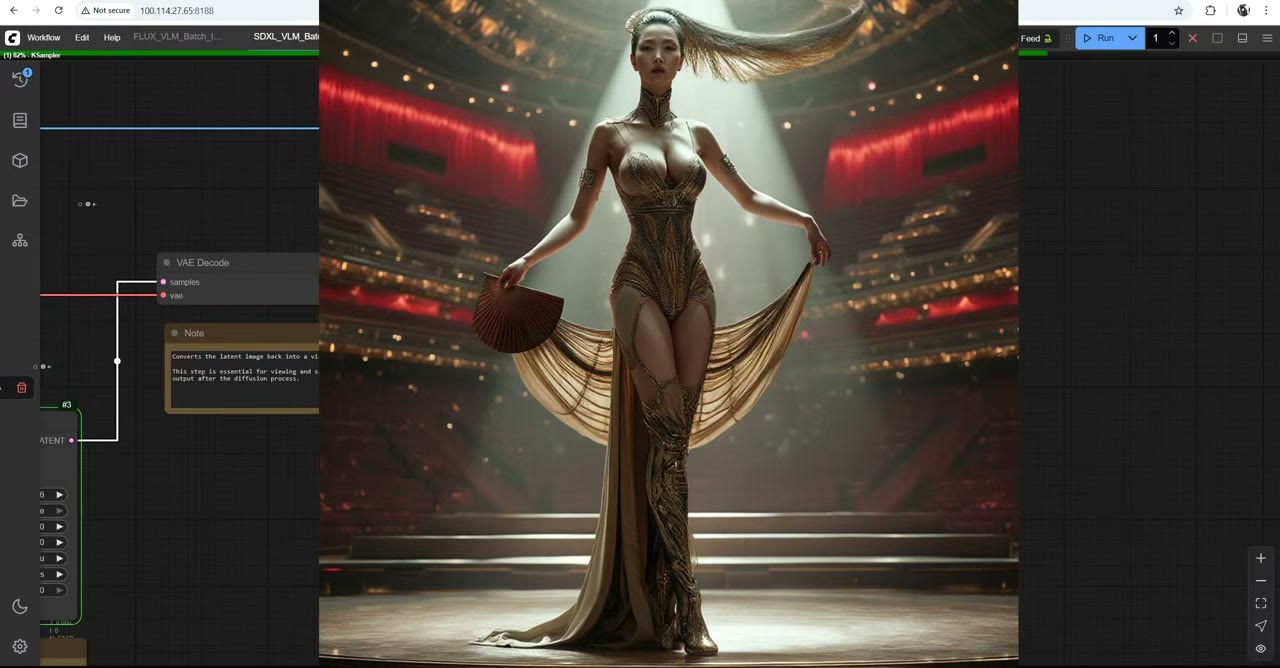
Writing prompts is the slow part of generating images in bulk. This workflow hands it to an AI that can see: a vision language model looks at each of your sketches, describes it, and writes a fresh prompt. Then SDXL or Flux generates a new image that follows the sketch through a depth ControlNet.
Everything runs locally on your computer, offline. Feed it 10 or 50 sketches before bed and you can wake up to a few thousand images.
In short
- Ollama runs the language models locally; ComfyUI talks to it through a node pack.
- Model: about 4.7 GB is the sweet spot. LLaVA Q4 gave me the best prompts.
- Settings that matter: keep-alive 0 with Flux, max tokens 512 for Flux or 77 for SDXL, and a randomized seed.
- Then: the prompt plus a depth map of the sketch go to SDXL or Flux.
LLMs, MLLMs and VLMs, briefly
The original ChatGPT only took text in: a large language model (LLM). ChatGPT, Gemini and Grok are now multimodal models (MLLMs) that also take images, audio and more. A vision language model (VLM) is the image-and-text kind, and that’s what we need: something that can look at a picture and write about it.
What I didn’t know before: you can run both LLMs and VLMs on your own computer, with no internet connection.
1. Install Ollama
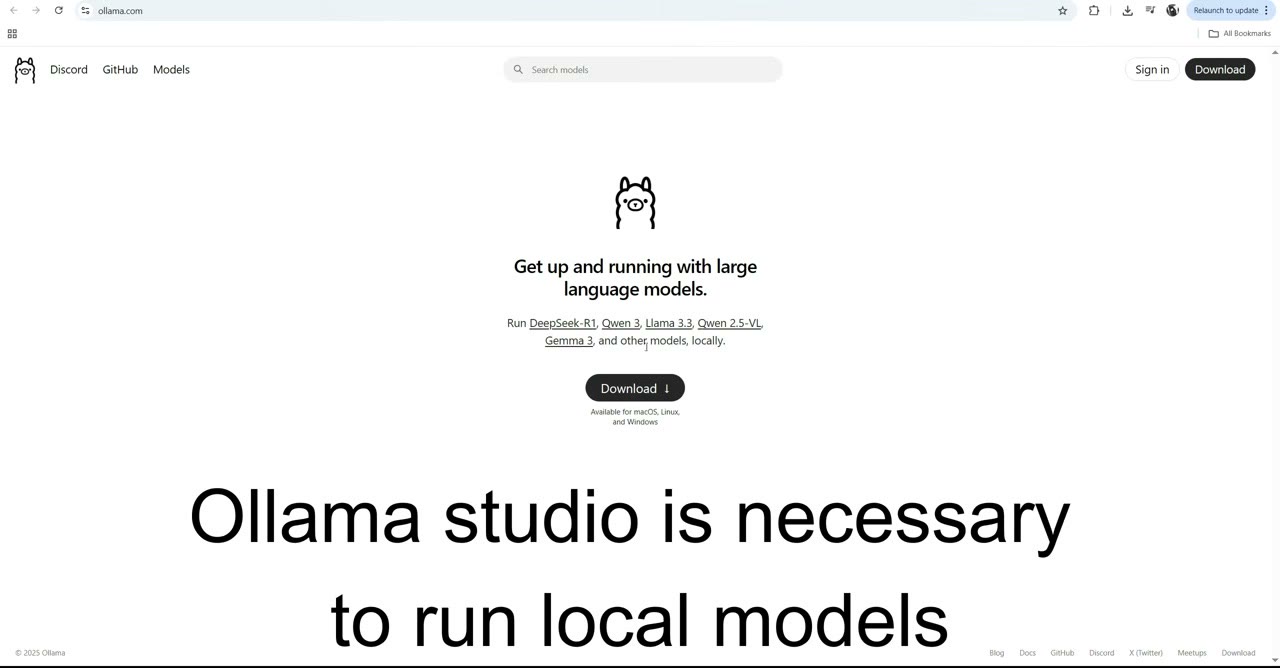
Ollama runs language models locally. Download the installer (about 700 MB; the models themselves are bigger), run it, and if it asks you to, paste the command it shows into a Command Prompt to finish the setup. When it’s done, the Ollama icon appears in the system tray. There’s nothing to configure; it just needs to be running alongside ComfyUI.
2. Install the node packs
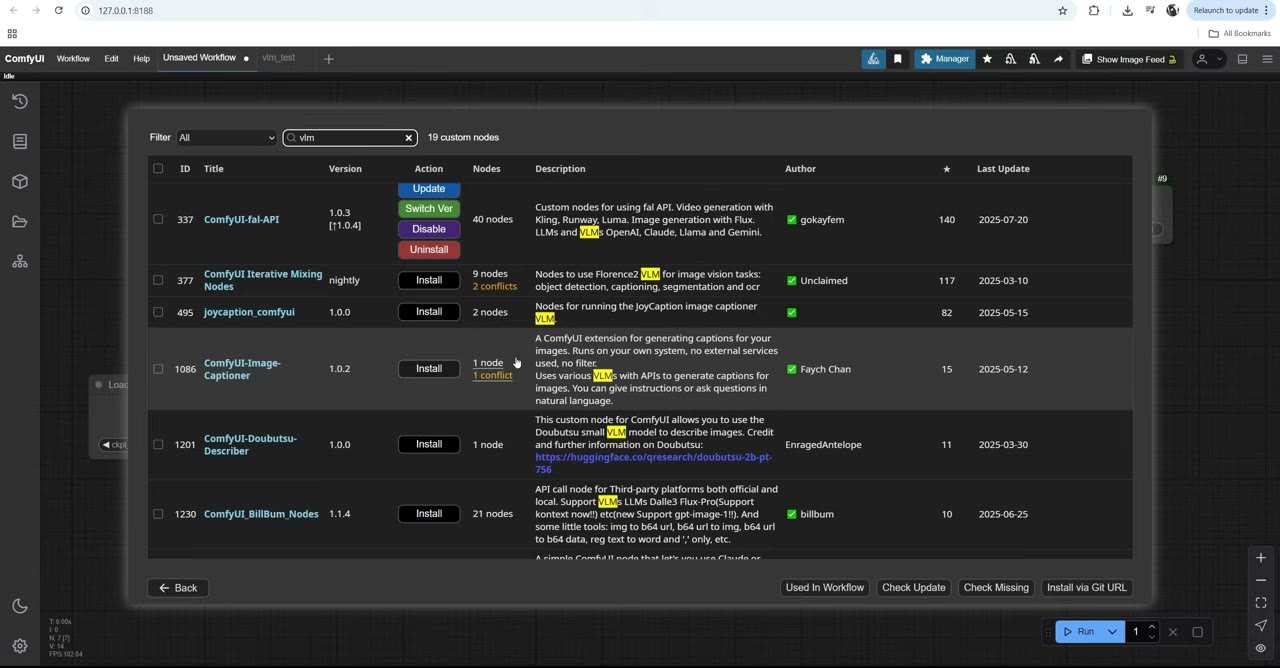
In the ComfyUI Custom Nodes Manager, a search for “VLM” shows many packs. Many haven’t been updated since ComfyUI moved from Python 3.11 to 3.12, and no longer work. The two I used, which do work:
- ComfyUI Ollama Describer, the nodes that talk to Ollama.
- ComfyUI LayerStyle, which isn’t for language models but is useful later in the workflow.
Install both and restart ComfyUI.
3. Choose a model
Add an Ollama Text Describer node to start. Its model list shows names and sizes. Models aren’t preinstalled; the first time you pick one, it downloads into your user folder on the system drive. You can change that folder in Ollama’s settings (click the tray icon).
Two annoyances to know about:
- Downloaded models don’t keep readable names, so you can’t tell which ones you already have. Keep a note.
- Text models can’t see. An LLM only produces text; for image descriptions you need a vision model.
From what I tried:
| Model size | Result |
|---|---|
| ~350 MB (0.5B parameters) | Basically useless; dumber than GPT-3 |
| ~1 GB | Okay, not great |
| ~4.7 GB | The best trade-off between quality and size |
| Above 5 GB | I didn’t go further; it takes too much VRAM next to the image model |
4. Describe an image and write a prompt
For images, use the Ollama Image Describer node. It takes an image, follows your instructions and outputs text, which becomes the prompt. Connect a text preview node to read it.
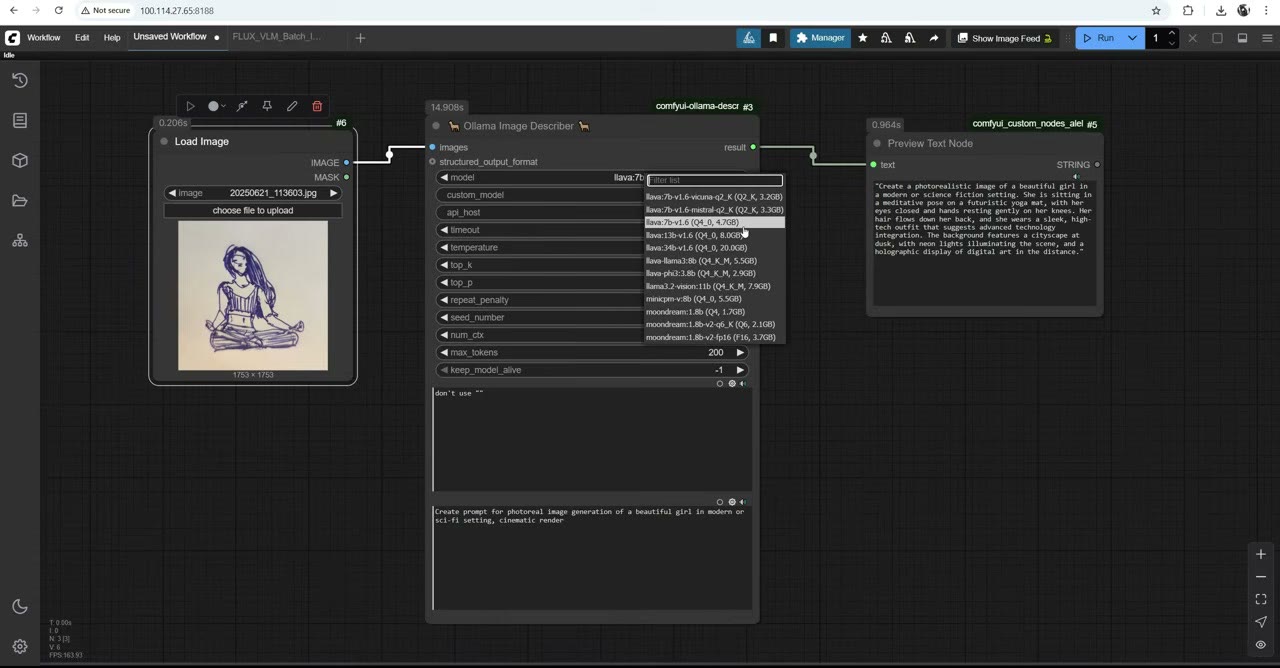
I loaded one of my sketches and used LLaVA Q4 (LLaVA at 4-bit quantisation), which gave the best prompts of the models I tried. The node has two instruction fields. I found the second one is the one that really counts. Mine said, in effect: create a prompt for photo image generation of this person in that setting, and don’t use quotation marks, which some models add everywhere.
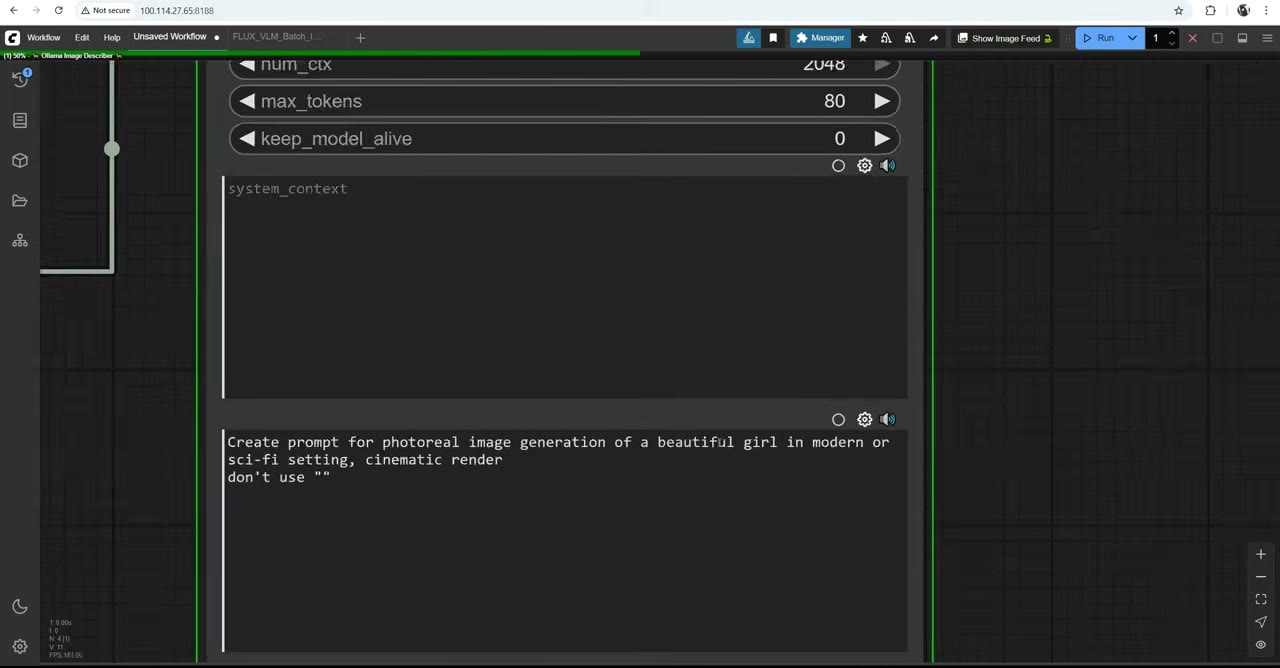
Avoid “thinking” models. They write out their reasoning (“I’m thinking about how to answer…”) instead of a prompt, which is useless to pass to an image model.
5. The settings that matter
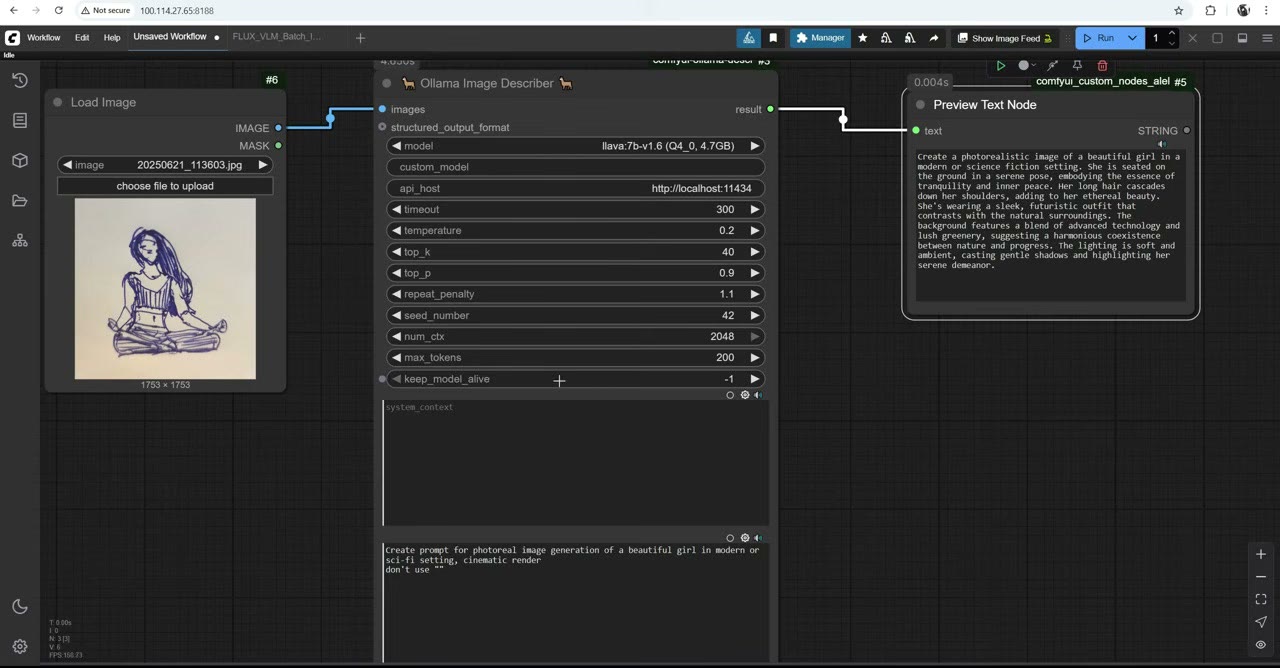
Keep-alive. -1 keeps the model loaded in memory; 0 unloads it after each prompt. I normally use 0. With SDXL and 16–24 GB of VRAM you can keep it loaded and save a few seconds per image. With Flux, I had to unload it every time even on 24 GB: otherwise the 5 GB vision model took so much memory that the image render got stuck.
Maximum tokens. Match it to the image model: 512 for Flux, but only 77 for SDXL, the size of its text encoder’s window.
Seed. The describer’s seed doesn’t change on its own, so you’d get the same prompt every run. Add rgthree’s Seed node, set it to randomize each time, and connect it to the describer. Now every run writes a new prompt. Combined with a setting in the instructions (“in a particular location”, “in this scenario”), each sketch produces a stream of different ideas.
I left repeat penalty and temperature at their defaults; they’re good enough.
6. The full workflow: sketches to images, automatically
The complete version, which is on my Patreon, puts it all together:
- Load Image Batch picks up the next sketch from a folder on every run.
- The Ollama Image Describer writes a new prompt for it. My sketches were of different women in different poses, so the same instruction produced a different prompt for each.
- The prompt goes to the positive prompt of the image model.
- Depth Anything turns the sketch into a depth map, and Apply ControlNet uses it to keep the pose.
- KSampler generates the image. For SDXL I used Juggernaut XL (about 6 GB).
The width and height are set once, as integer nodes, and reused for the resize, the depth map and the canvas.
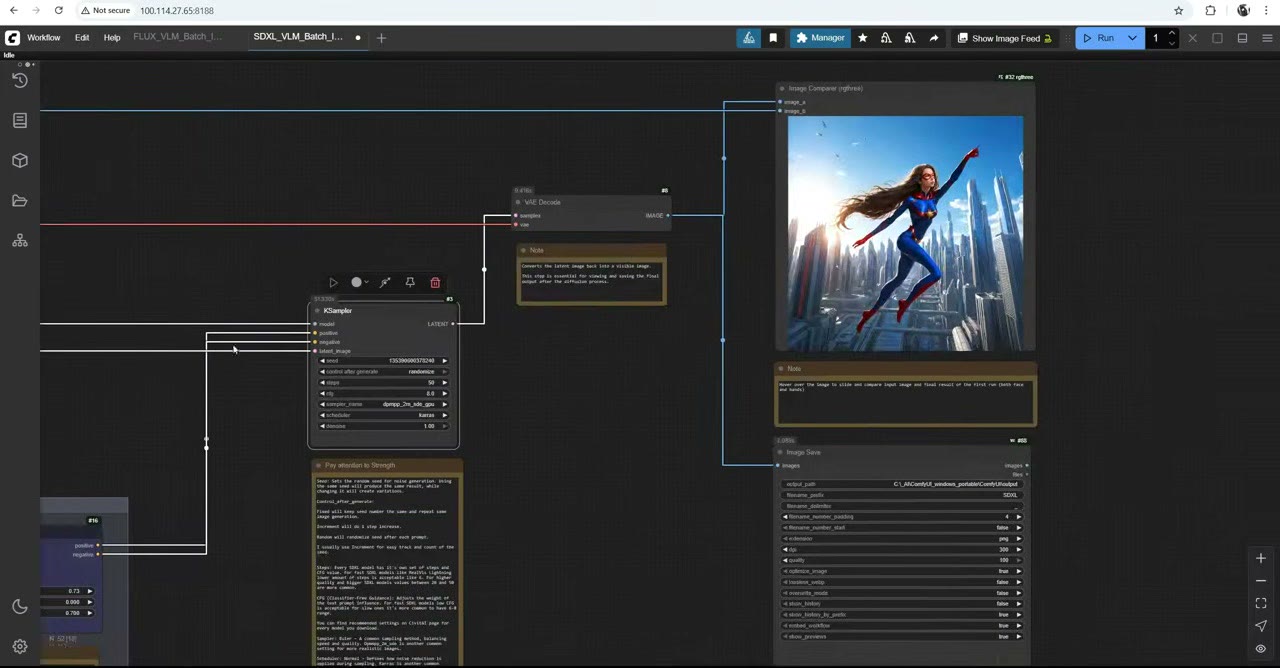
With Flux it’s the same workflow, using the XLabs Sampler and Flux dev in place of SDXL. Flux was more creative and gave more variation. Remember the keep-alive setting.
The power of this is scale: prepare 10 or 50 sketches, run it overnight with a randomized seed, and you get thousands of different images, each still following one of your drawings. For other ways to feed prompts in bulk, see prompt lists and my Prompt Cycler node.
Watch the video version (11:31)
Everything above is in the video too, if you'd rather follow along on screen.
FAQ
Which vision model should I use in Ollama?
In my tests, models around 4.7 GB were the best trade-off. The tiny 350 MB ones were basically useless, and 1 GB models were okay but not great. A quantised LLaVA (Q4) gave me the best prompts.
How many tokens can the prompt be?
Up to 512 tokens for Flux, but only 77 for SDXL. Set the describer’s maximum tokens to match the image model.
Why does my Flux render get stuck after the description?
The vision model is still in VRAM. Set keep-alive to 0 so it unloads after writing each prompt. With Flux, even 24 GB of VRAM wasn’t enough to keep both loaded.
Why do I get the same prompt every time?
The describer’s seed doesn’t change by itself. Connect a seed randomizer node so every run gets a new seed, and a new idea.
Anton Tenitsky is a 3D artist with 15+ years in computer graphics, working with Nickelodeon, Gameloft, Marvel Rivals and many other clients. More about me